 Petko Aleksandrov
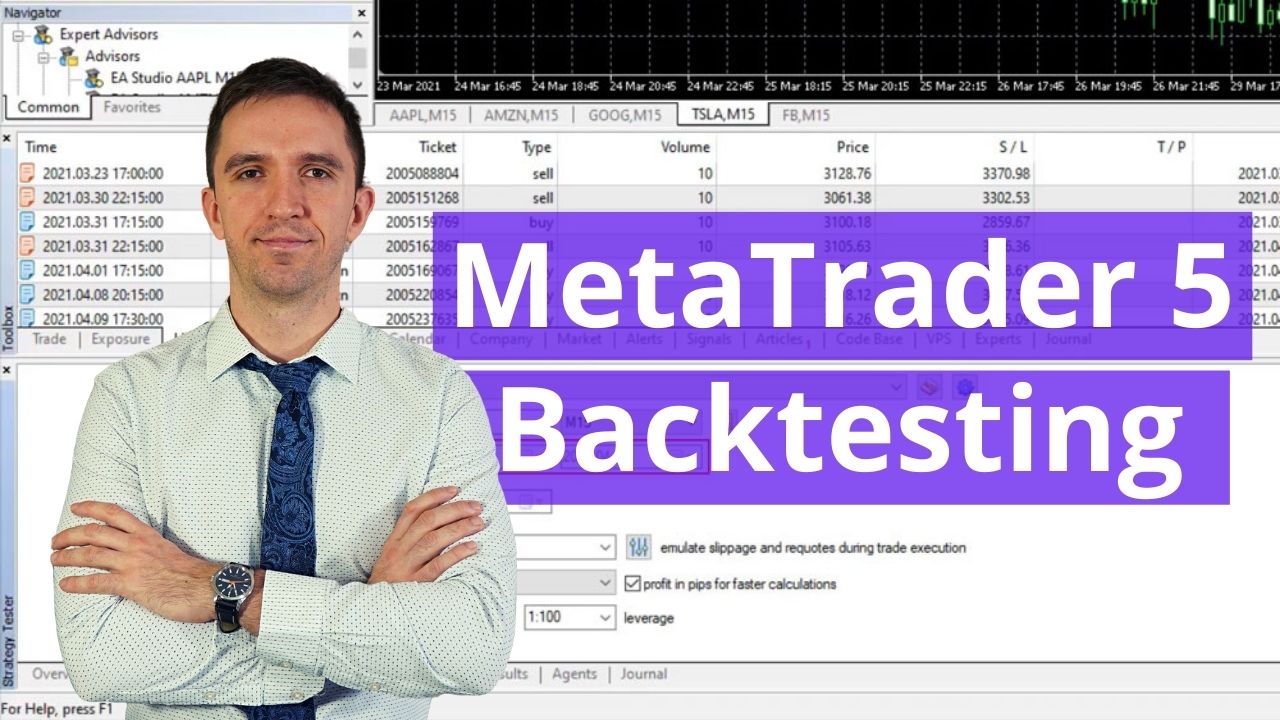
To backtest in MetaTrader 5, open the Strategy Tester (press Ctrl+R or go to View > Strategy Tester), select the Expert Advisor from the dropdown, choose the symbol, timeframe, tick model, and date range, then click the Start button. The platform will simulate the EA’s performance on historical data and produce a report with profit, drawdown, trade count, equity curve, and other key metrics. MetaTrader 5 supports real tick data natively, which means you can run backtesting with 99%+ modeling quality without third-party tools.
Quick Steps
| Step | Action |
| 1 | Install the EA in the MQL5 > Experts folder |
| 2 | Restart MetaTrader 5 or refresh the Navigator panel |
| 3 | Press Ctrl+R to open the Strategy Tester |
| 4 | Select the Expert Advisor from the dropdown |
| 5 | Choose the symbol, timeframe, and date range |
| 6 | Select the tick model (Every Tick based on Real Ticks for highest accuracy) |
| 7 | Set spread, initial deposit, and EA input parameters |
| 8 | Click Start and wait for the test to finish |
| 9 | Review the Results, Graph, Report, and Backtest tabs |
| 10 | Repeat with different data ranges, brokers, and optimization settings |
That covers the mechanics. The rest of this tutorial fills in the context behind each step: how the MT5 Strategy Tester differs from MT4, how to load quality historical data, how to read the results properly, how to use optimization, and where most traders go wrong. Whether you are new to backtesting or moving to MetaTrader 5 from an older platform, this is the practical walkthrough.
What MetaTrader 5 Backtesting Is and Why It Matters
When you backtest in MetaTrader 5, you are replaying historical market data through an Expert Advisor’s trading logic. The Strategy Tester walks through past price movement tick by tick (or bar by bar, depending on your model) and executes trades according to the EA’s code. Every entry, every exit, every profit, and every loss is recorded. At the end, you get a detailed report showing exactly what would have happened if you had been running that EA during the selected time period.
This is important for a simple reason. Testing an Expert Advisor on a live demo account in real time takes weeks or months. Backtesting compresses that same analysis into minutes. You can test years of data in a single run, across multiple instruments and timeframes, and get a clear picture of the strategy’s behavior before putting any capital at risk.
MetaTrader 5 has several advantages over its predecessor for this purpose. According to MetaQuotes documentation, the MT5 Strategy Tester supports real tick data from broker servers, multi-currency testing, built-in forward testing, and multiple optimization modes. These features make it, perhaps, the most capable retail backtesting software available without additional paid tools.
A few things backtesting tells you:
- Whether the strategy is profitable over the selected historical period
- The maximum drawdown the EA produced during that period
- The total trade count, win rate, and average profit per order
- How the equity curve looks across different market conditions
A few things backtesting does not tell you:
- How the EA will perform in future conditions
- Whether the strategy is over-fitted to the specific data it was tested on
- How real slippage and execution delays will affect live results
Before You Start: Installing an EA and Loading Historical Data

Before running any backtest, two things need to be in place: the EA file and the data.
Installing the Expert Advisor. If the EA is not already in your Navigator panel under “Expert Advisors,” place the file manually:
- Open MetaTrader 5 and go to File > Open Data Folder.
- Open the MQL5 > Experts folder.
- Copy the EA file (.ex5 or .mq5) into that folder.
- Restart MetaTrader 5 or right-click “Expert Advisors” in the Navigator and select Refresh.

If you want to verify the EA compiles correctly, right-click it in the Navigator and select “Modify.” This opens the MetaEditor, where you can click Compile and check for any errors or warnings. This step is optional but useful if you are working with source code rather than a pre-compiled file.
To test with ready-made robots, the free EA library from Algo Trading Space includes EAs formatted for both MT4 and MT5.
How to Get Quality Historical Data for MT5
MetaTrader 5 downloads historical data automatically from your broker’s server when you open a chart or run the Strategy Tester. For most currency pairs and timeframes, this happens in the background. However, the quality and depth of that data varies by broker.
To check what you have available:
- Go to View > Symbols.
- Select the instrument you plan to test (e.g., EURUSD).
- Click the Ticks tab to see the available tick data range, or the Bars tab for bar data.
- If you need more data, click Request to download additional historical records from the broker’s server.
For forex backtesting, longer data ranges produce more meaningful results because they include different market conditions: trending periods, ranging periods, high-volatility events, and quiet stretches.
If your broker’s data is incomplete or you want cleaner, gap-free records, the Historical Data App from Algo Trading Space provides data sourced from DukasCopy Europe, compiled from accurate tick data with no missing bars. It supports MetaTrader 5, EA Studio, and FSB Pro formats, and downloads up to 200,000 bars per instrument in seconds. The backtesting data is refreshed every 24 hours, so you always have the most recent records.
How to Open and Configure the MT5 Strategy Tester

Press Ctrl+R or go to View > Strategy Tester. The tester opens as a separate panel with its own set of tabs.
The first tab you see is the Overview tab. From here, select your testing mode. MetaTrader 5 offers three options:
- Single: Run one backtest with a specific set of parameters.
- Optimization: Test multiple parameter combinations to find the best-performing set.
- Visualize: Watch the EA trade in real time on a simulated chart.
For a standard backtest, select Single. Then move to the Settings tab to configure everything:
| Setting | What to Do | Why It Matters |
| Expert Advisor | Select the EA from the dropdown | Picks which robot to test |
| Symbol | Choose the instrument (e.g., EURUSD, TSLA, XAUUSD) | Must match the asset the EA was designed for |
| Timeframe | Select the period (M1, M5, H1, D1, etc.) | Must match the strategy’s intended chart |
| Date range | Set the From and To dates | Controls which portion of history is tested |
| Forward | Optional; sets a forward-testing period | Splits the data into backtest and forward-test segments |
| Modeling | Select the tick model | Controls the accuracy of price simulation |
| Deposit | Set the initial account balance and currency | Determines position sizing context |
| Execution | Select Instant or Market execution | Should match your broker’s execution model |
Before pressing the start button, click the Inputs tab to adjust the EA’s parameters: lot size, stop loss, take profit, and any custom settings the developer included. The default values are set by the EA, but you can customize them to match your risk preferences or specific market conditions.

Choosing the Right Tick Model
This is one of the most important decisions in the backtesting process. MetaTrader 5 offers four options, as documented by MetaQuotes:
| Model | Speed | Accuracy | Best For |
| Every Tick based on Real Ticks | Slowest | Highest (99%+) | Final decision-grade testing with real broker tick data |
| Every Tick | Slow | High | Detailed testing when real ticks are not available |
| 1-Minute OHLC | Medium | Moderate | Faster screening with reasonable accuracy |
| Open Prices Only | Fastest | Limited | EAs that trade only on bar-open signals |
The “Every Tick based on Real Ticks” model is unique to MetaTrader 5. It uses actual historical tick data and real ticks downloaded from the broker’s servers, including the actual spread at each moment. This produces the most realistic simulation available on any retail platform, according to MetaQuotes documentation. No third-party tools are required, unlike in MT4 where reaching 99% modeling quality requires the Tick Data Suite.

For a first-pass screening of many EAs, “1-Minute OHLC” or “Open Prices Only” is fast enough. But for your final test before committing capital, always use real ticks. The difference in results can be significant, especially for strategies that are sensitive to spread changes and intra-bar price movement.
Running the Backtest and Reading the Results

Once everything is configured, click the Start button. A progress bar shows how far along the test is. The time it takes depends on the data range, tick model, and complexity of the EA’s code. Tests using real ticks on large data ranges can take several minutes; open prices only tests typically finish in seconds.
After the Strategy Tester completes the run, several tabs show the output:
- Backtest tab: The trade-by-trade log: every order opened and closed, the type (buy or sell), volume, entry and exit prices, profit or loss, and running balance.
- Graph tab: The equity curve. A smooth, upward-sloping line suggests consistent performance. Sharp drops indicate periods of heavy drawdown. Most experienced traders look at this tab first.
- Trade Statistics tab: Shows win rate, average win, average loss, and trade distribution by time, day of week, and holding period.

Key Metrics in the Report Tab
The Report tab contains the numbers that matter most when deciding whether to trust a strategy:
| Metric | What It Tells You |
| Total net profit | Total gain or loss across all trades |
| Profit factor | Gross profit divided by gross loss; many traders treat 1.3-2.0 as a useful starting range |
| Recovery factor | Net profit divided by maximum drawdown; higher is better |
| Sharpe ratio | Risk-adjusted return; useful for comparing strategies |
| Maximal drawdown | Largest peak-to-trough equity decline |
| Total trades | Number of executed orders; more trades generally means more statistical confidence |
| Expected payoff | Average profit per trade |
| Custom metrics | MT5 allows EAs to report custom performance values |
A practical note: MetaTrader 5 also generates a detailed HTML report that you can save by right-clicking the results and selecting “Save as Report.” This is useful for keeping records and comparing multiple backtests over time.
How many trades is “enough”? There is no fixed rule, but several hundred trades across different market conditions give more confidence than a thin sample of 30 or 40. The ideal number depends on the strategy’s time horizon: a scalper will have thousands of trades in a year, while a swing strategy might have fewer than 100.
Using Visual Mode and Forward Testing

Visual mode is one of the most useful features for understanding how an EA actually behaves. In the Overview tab, select Visualize instead of “Single.” The Strategy Tester opens a separate chart window and replays historical price action in real time, showing exactly where trades were opened and closed.

This is helpful for several reasons:
- You can watch the Expert Advisor react to different conditions and get a feel for the strategy’s logic.
- Trade arrows mark entries and exits on the chart.
- A speed slider lets you control how fast the simulation runs. Slow it down for individual trade analysis, or push it to maximum to finish quickly.
- At the end, the chart shows the indicators the EA uses, which helps you understand entry and exit conditions.
Visual mode is not the fastest way to test. It is, however, the best way to learn how a new EA works before trusting it with real money.
Forward testing is a built-in MetaTrader 5 feature that MT4 does not have. In the Settings tab, you can set a “Forward” period that splits the historical data into two segments: the main backtest runs on the earlier portion, and a forward test runs on the later portion. This simulates what would happen if the strategy was deployed on unseen data, and it is one of the most reliable ways to check for over-fitting.
For example, if you test from 2020 to 2025, you might set the forward period to start in 2024. The EA is tested on 2020-2023, and then the forward results show how it performed on 2024-2025 data it was never optimized against. If the forward results are significantly worse than the main backtest, the strategy may be over-fitted.
MT5 Strategy Optimization: Testing Multiple Parameter Sets
One of MetaTrader 5’s most powerful features is its built-in optimization engine. Instead of testing a single set of parameters, you can tell the Strategy Tester to run thousands of combinations and rank them by performance.
Here is how to set it up:
- In the Overview tab, select Optimization instead of “Single.”
- Go to the Inputs tab.
- For each parameter you want to optimize, check the box and set the Start, Step, and Stop values. For example, if you want to test Stop Loss values from 20 to 100 in increments of 10, set Start=20, Step=10, Stop=100.
- In the Settings tab, choose the optimization criterion: Balance, Profit Factor, Expected Payoff, Sharpe Ratio, or a custom metric.
- Click Start.
MetaTrader 5 offers two optimization modes, as described in MetaQuotes documentation:
- Complete (slow): Tests every possible combination of parameters. Produces the most thorough results but can take a long time if you have many variables.
- Genetic algorithm (fast): Uses an evolutionary approach to find near-optimal parameter sets without testing every single combination. Much faster, and often sufficient for practical purposes.
After optimization finishes, the Optimization tab shows all tested combinations sorted by your chosen criterion. The Optimization Graph tab provides a visual map of parameter performance.

A critical warning about optimization: it is the fastest path to over-fitting. If you optimize too many parameters over too short a data range, you will produce a strategy that looks perfect on the past and collapses on anything new. Always follow optimization with a forward test (using the built-in forward period feature) or an out-of-sample test in EA Studio to verify that the optimized settings hold on data the strategy was not trained on.


Automated Backtesting vs. Manual Backtesting in MT5
Most of this tutorial focuses on automated backtesting, which is testing an Expert Advisor through the Strategy Tester. But MetaTrader 5 also supports a form of manual backtesting through its visual mode and bar-by-bar replay features.
Automated backtesting uses the Strategy Tester to run an EA’s code against historical data. The EA makes every decision: when to enter, where to place the stop, when to exit. The results are objective and repeatable. This is the standard method for testing algorithmic trading strategies and the approach most forex traders use.
Manual backtesting involves replaying historical data bar by bar and making trading decisions yourself, as if you were trading live. MetaTrader 5’s visual mode can partially support this, though dedicated trading simulators (like Forex Tester) are more fully featured for pure manual backtesting. The advantage of manual backtesting is that it helps you practice your discretionary strategy under realistic conditions without risking capital. The disadvantage is that it is slow, subjective, and not reproducible.
For traders who use algorithmic strategies, automated backtesting in the MT5 Strategy Tester is the standard. For discretionary traders who want to practice their approach, manual backtesting through bar replay serves a different purpose. Both have a place, depending on your trading style.
| Approach | What It Tests | Speed | Objectivity | Best For |
| Automated (Strategy Tester) | EA code against historical data | Fast | Fully objective | Algorithmic strategies and Expert Advisors |
| Manual (bar replay / visual mode) | Your discretionary decisions | Slow | Subjective | Practicing chart reading and order execution |
| Hybrid (EA + visual mode) | EA logic while watching the chart | Medium | Objective with visual context | Understanding how an EA behaves before going live |
Common MT5 Backtesting Mistakes and Troubleshooting
| Problem | Likely Cause | Fix |
| EA does not appear in the Strategy Tester dropdown | File not in MQL5/Experts or platform not refreshed | Place .ex5 or .mq5 in the correct folder and restart MetaTrader 5 |
| No trades after the test completes | Wrong symbol, timeframe, date range, or EA input parameters | Check that the instrument and period match the EA’s design; expand the date range |
| Modeling quality is low | Real tick data not available for the selected period | Select “Every Tick based on Real Ticks” and ensure your broker provides the data |
| Results look unrealistically good | Over-optimization or unrealistic spread and execution settings | Re-test with real ticks and add slippage using the “Stress and Delays” mode |
| Backtest differs from demo performance | Spread, slippage, or different execution conditions | Forward-test on demo and compare results across brokers |
| Optimization takes forever | Too many parameters or Complete mode on a large data set | Use the Genetic algorithm mode; reduce the number of optimized parameters |
| Strategy works on one pair but fails on others | Over-fitting to a single instrument’s historical conditions | Test across 2-3 related pairs and different time periods |
A note on the “Stress and Delays” feature: MetaTrader 5 includes a testing mode (available in the Overview tab alongside Single, Visualize, and Optimization) that simulates random execution delays and slippage. This is one of the most realistic backtesting features available on any retail platform. Running your final test with this mode enabled gives you a more honest picture of how the strategy might behave under real market conditions.
Key MT5 Backtesting Terms
| Term | Meaning |
| Expert Advisor (EA) | An automated trading program that runs on MetaTrader |
| Strategy Tester | MetaTrader 5’s built-in backtesting and optimization tool |
| MQL5 | The programming language used for MT5 EAs, indicators, and scripts |
| Real ticks | Historical tick data downloaded from the broker’s server |
| Every Tick | A tick model that simulates every price change within each bar |
| Modeling quality | An estimate of how accurately the test represents real price movement |
| Forward testing | Running the strategy on a separate, unseen portion of data |
| Optimization | Testing multiple parameter combinations to find the best-performing set |
| Genetic algorithm | An optimization method that finds near-optimal parameters without testing every combination |
| Visual mode | A mode that replays trades on a chart for visual inspection |
| Spread | The difference between bid and ask price at any given moment |
| Drawdown | The decline from peak account equity to its lowest point |
Frequently Asked Questions
Is MetaTrader 5 better than MT4 for backtesting Expert Advisors?
For most traders, yes. MetaTrader 5 supports real tick data natively, offers multi-symbol testing, includes a built-in forward testing period, and provides multiple optimization modes. MT4 can reach 99% modeling quality only with third-party tools like Tick Data Suite. MT5 achieves this out of the box per MetaQuotes documentation. The main reason traders stay on MT4 is compatibility: many older EAs are written in MQL4 and cannot run on MT5 without being rewritten in MQL5.
How do I get real tick data for MetaTrader 5 backtesting?
MetaTrader 5 downloads real tick data automatically from your broker’s server. Go to View > Symbols, select the instrument, and click the Ticks tab to see available data. If the range is insufficient, click Request to download more. The depth of available history varies by broker. For independent, gap-free data, the Historical Data App provides tick-compiled bar data from DukasCopy Europe, updated every 24 hours, formatted for direct import into MetaTrader 5.
What is the difference between Single, Optimization, and Visualize modes?
Single mode runs one backtest with a fixed parameter set and produces a standard report. Optimization mode tests thousands of parameter combinations and ranks them by a performance criterion you choose (balance, profit factor, Sharpe ratio, etc.). Visualize mode replays the backtest on a chart so you can watch trades open and close in simulated real time. Most traders start with Single for a quick check, then use Visualize to understand behavior, and Optimization only after confirming the base strategy works.
Can I backtest stocks, crypto, and commodities in MetaTrader 5, not just forex?
Yes. MetaTrader 5 supports backtesting on any instrument your broker provides, including forex pairs, stocks, indices, commodities, and cryptocurrencies. The Strategy Tester uses the same workflow regardless of asset class: select the symbol, choose the timeframe and tick model, and press Start. The only requirement is that your broker supplies historical data for the instrument. Forex backtesting is the most common use, but the platform handles equities like Tesla or indices like the S&P 500 equally well.
Should I always use “Every Tick based on Real Ticks” for MT5 backtesting?
For final, decision-grade testing, yes. This model provides the highest accuracy because it uses actual historical ticks and real spread from the broker’s server. For quick screening of many Expert Advisors, “1-Minute OHLC” or “Open Prices Only” is faster and acceptable as a first-pass filter. The tradeoff is speed versus accuracy. A real-tick test on five years of data can take several minutes, while an open-prices test finishes in seconds. Use the faster models for filtering, and real ticks for your shortlist.
The safest way to learn MetaTrader 5 backtesting is to practice on a demo account with strategies you can study and modify. Algo Trading Space offers a free beginner course that walks through backtesting, strategy building, and EA deployment step by step. If you want ready-to-test robots, the free EA library gives you a practical starting point. And for monthly updated strategies, live performance data, and direct support, the VIP Club is where serious traders go next. Reach out to the team whenever you need help with your backtest results or strategy setup; that is what they are there for.