

 Petko Aleksandrov
Welcome to the innovative world of automated trading! Choosing a reliable trading robot can be long and exhausting process. If you are looking for time-saving solution, we are thrilled to introduce you to our Top 10 Robots App – a significant advancement in automated trading technology, where we select our top 10 trading robots for you.
This web-based application provides users with an immediate look at the effectiveness of various strategies across multiple currencies and assets. The main purpose of the Top 10 Robots App is to streamline the time-consuming process of selecting, testing, and deploying Expert Advisors. With robust back-testing capabilities and real-time performance metrics, the Top 10 Robots App ensures that only the most reliable and effective trading bots are included in the solution. In this guide, we’ll look into how to seamlessly integrate the 10 top trading robots into your MetaTrader platform, maximizing your trading potential across various markets. Discover how the Top 10 Robots App can become your essential partner in achieving trading success.
Concept of the Top 10 Robots App
The Top 10 Robots App was born from a desire to simplify the complexities of using trading robots. Initially we were using EA Studio – a strategy builder that allows you to create strategies based on different historical data. We were creating hundreds of strategies, then placing them on demo accounts and connecting these accounts to FXBlue, from where we could follow the performance of the different Expert Advisors using the magic number. Then we were selecting the best ones to put on a live account. A process which was really time-consuming. Even though it is algo trading – just following the strategies, following the results, picking which ones to trade on a live account really takes time.
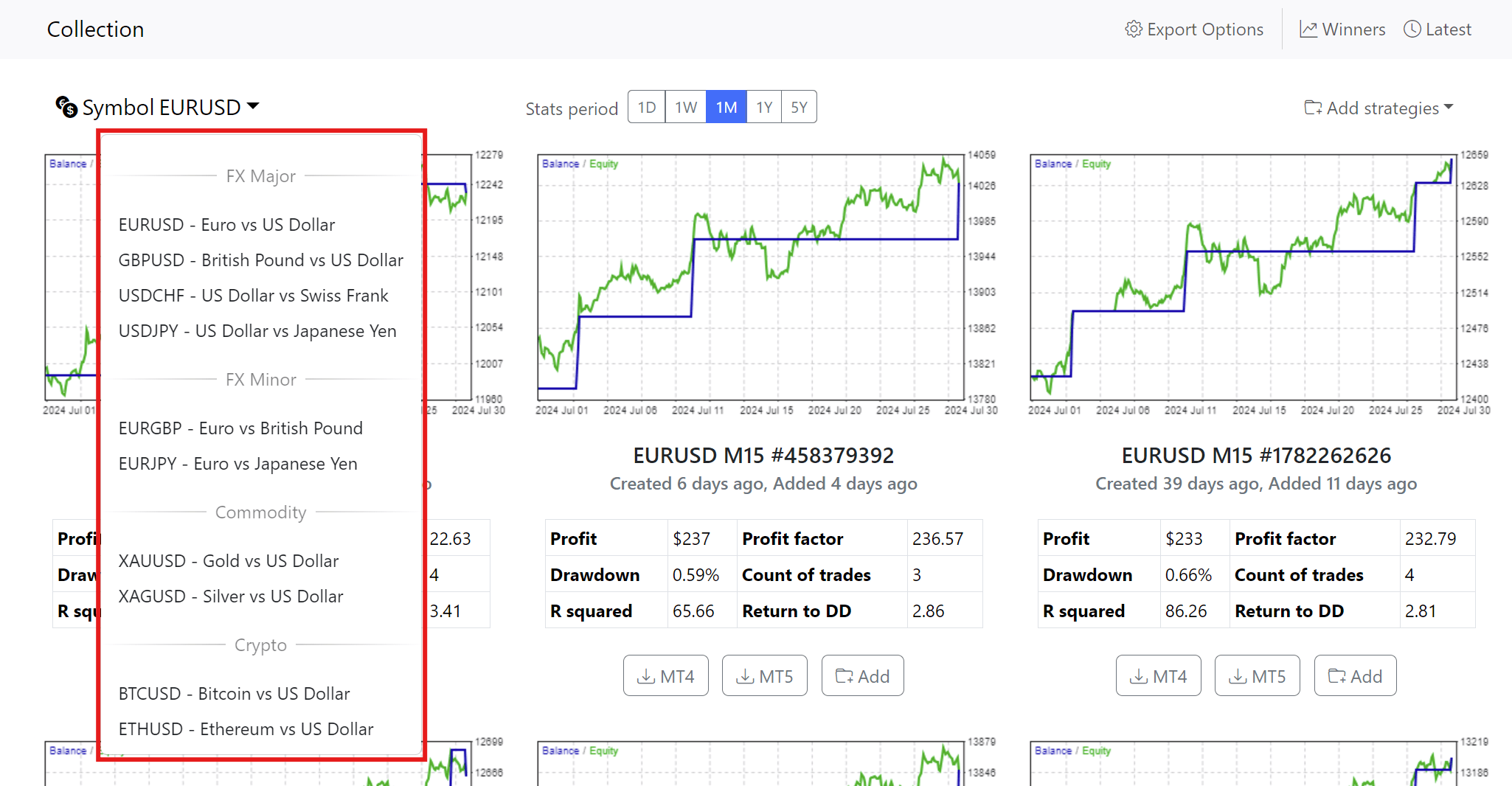
We decided to visualize all of that and to be useful to everyone who wants to follow our process into one app and just to make it easier. And we created the Top 10 Robots App, which replicates the whole process. Hundreds of strategies are being generated on our server, actually a few powerful servers and automatically we select the top 10 trading robots for Euro Dollar, Dollar Pound, Dollar Swiss, Dollar Yen, Euro Pound, Euro Yen (which turned out to be a great currency pair for our algo trading), for the Commodities, and for the cryptos. What you see on the app is the result of the generated strategies and the result of those being tested and selected.
Core Features of the Top 10 Robots App
Once you land on the Top 10 Robots app, you will see that you can select between plenty of assets. For example, you can select to trade Gold, and you can see the performance of the Expert Advisors for the last 5 years, last one year, last one month, last one week, and the last one day. The backtest displayed on the app helps you select which of the top 10 trading robots you might trade on your live account. However, we would always suggest that you first trade on a demo account.
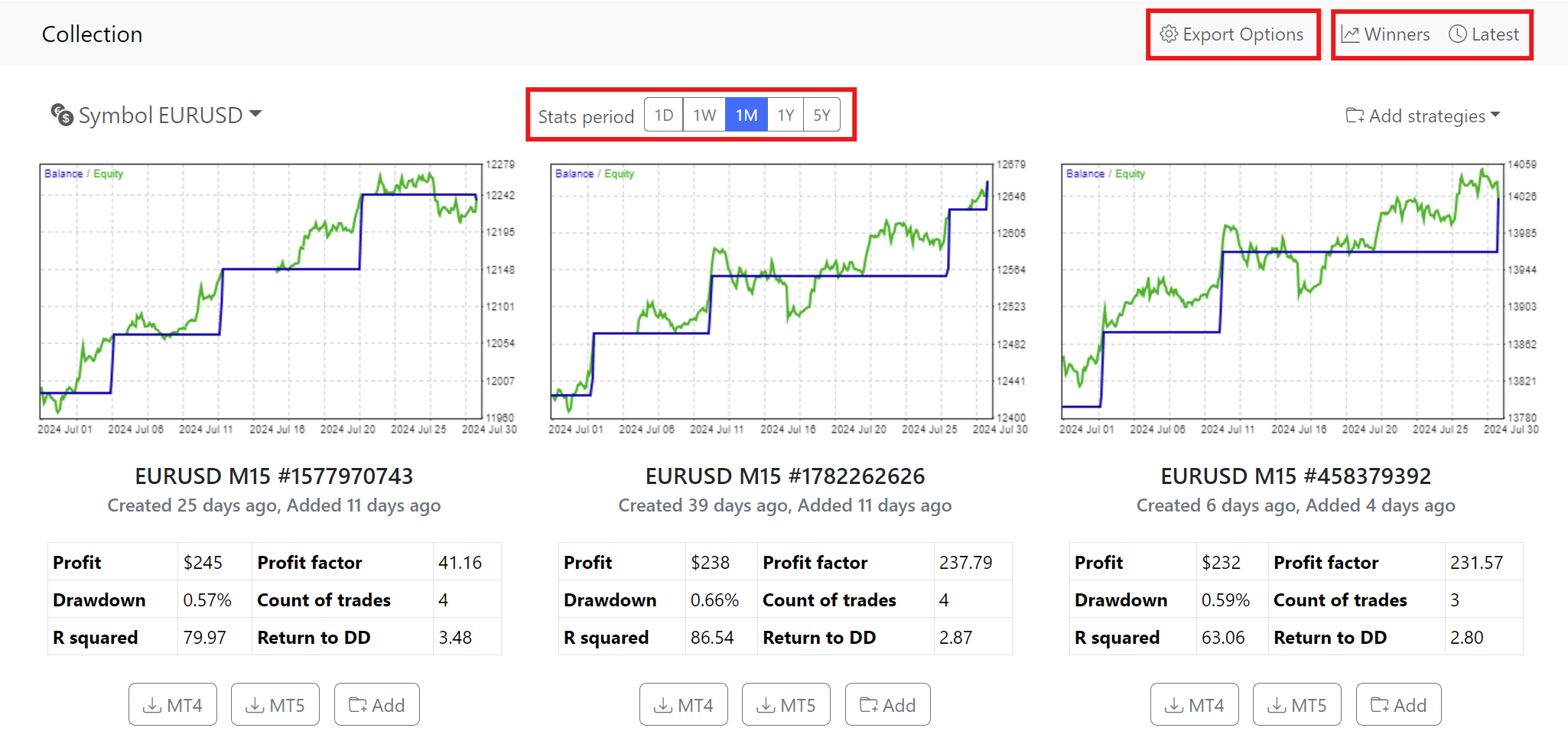
With the “Export Options” feature you can gain more control over your EAs. Now you can customize entry lots, set expert protections, and adjust news filter settings before downloading your chosen robots. Another feature of the app is a “Winners” section which showcases the best-performing strategies across all symbols. We’ve added various sorting options based on metrics like Profit Factor and Count of Traders to allow you to easily identify potential market leaders. You can also explore strategies based on different statistical periods, giving you a more granular view of their performance. And finally, the “Latest” section highlights the newest robots we’ve added to the app. Be sure to check it out regularly to discover fresh trading opportunities.
Strategy Generation Process
The Top 10 Robots App transforms complex market data into actionable trading strategies. This sophisticated tool leverages historical data provided by trusted brokers, ensuring that each strategy is grounded in realistic market conditions. We have several servers running 24/7, and those are generating strategies continuously. At the beginning of the process the platform utilizes Express Generator – an offline software that generates strategies.
The generation of strategies occurs in three distinct stages:
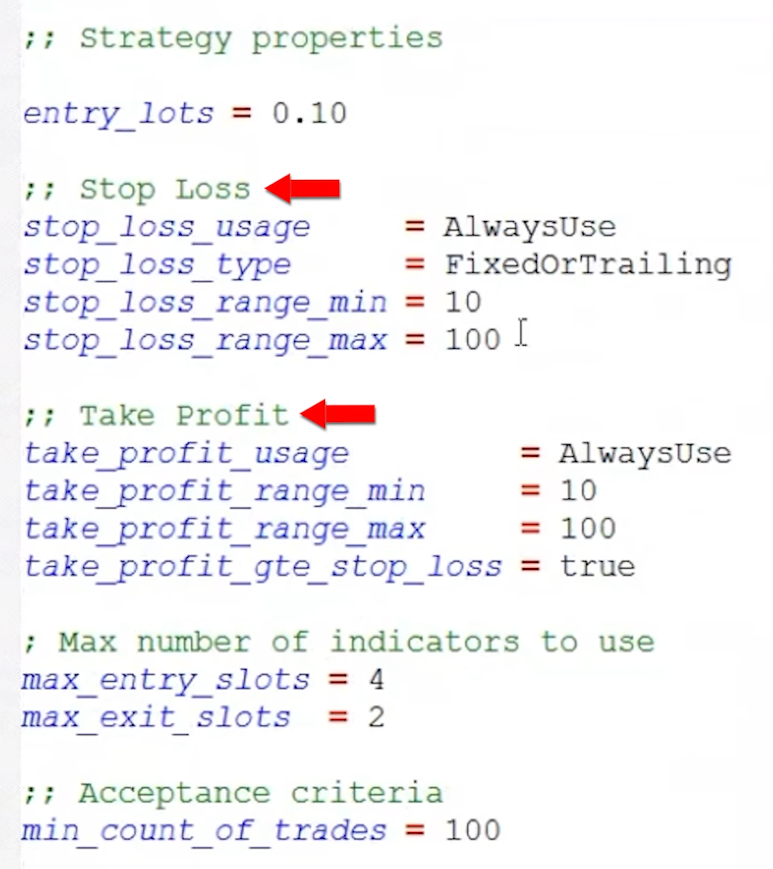
- In the first stage the Express Generator downloads fresh historical data with the updated symbol settings from the brokers. Then for 90 minutes, it generates 1,000 strategies for each symbol. Or in other words, it generates 10,000 strategies for all of the symbols in the app. 10,000 strategies every 90 minutes. All of these strategies use Stop Loss and Take Profit in the range between 10 and 100 pips. The strategies use a maximum of four entry indicators and a maximum of two exit indicators. In this stage, the only requirement is to have 100 trades as a minimum.
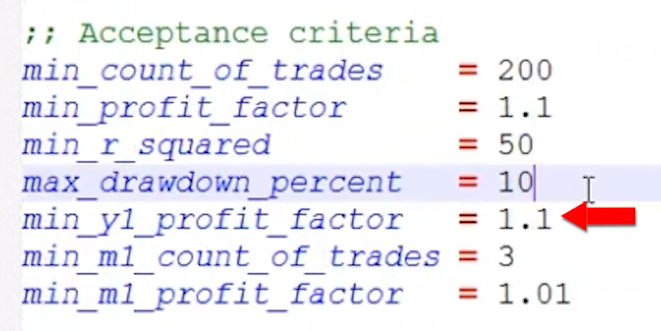
- In the second stage there is a stricter Acceptance Criteria. Strategies undergo a rigorous filtering process – minimum profit factor of 1.1, a minimum R-squared of 50, a maximum drawdown percentage of 10. Also, profit factor 1.1 must be in the last one year and there are at least three trades in the last one month. This is to avoid strategies that have been profitable in the past and now they’re just going sideways or even losing. The last one month must have been profitable too.
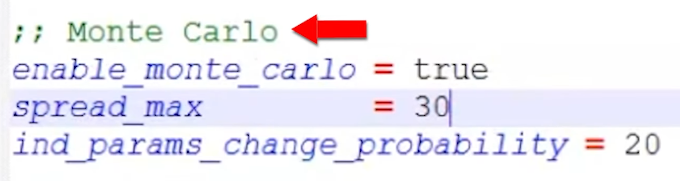
- In the third stage of the generation process, the app applies Monte Carlo validation method. It leaves in the collection just the robust strategies. It is trying to break the strategies prior to even testing them virtually. The Monte Carlo validation is a must if you are using any other strategy builder.
How to Start with the Top 10 Robots App
There are few things you would need to perform, before you start trading with our top 10 trading robots. Let’s have a detailed look at those steps separately.
Downloading the Expert Advisors
For example, if you want to trade Euro Dollar, you can select the top three performers in the last one month, and you can download these Expert Advisors for MetaTrader 4 or for MetaTrader 5. But this is just an example; you can trade all of them. You can download all the Expert Advisors from Euro Dollar, Pound Dollar, and the rest of the currency pairs.
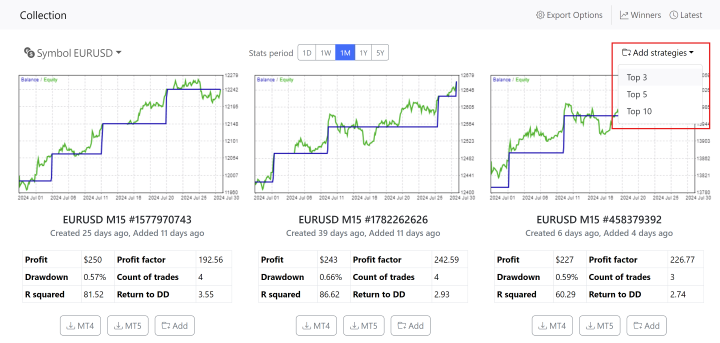
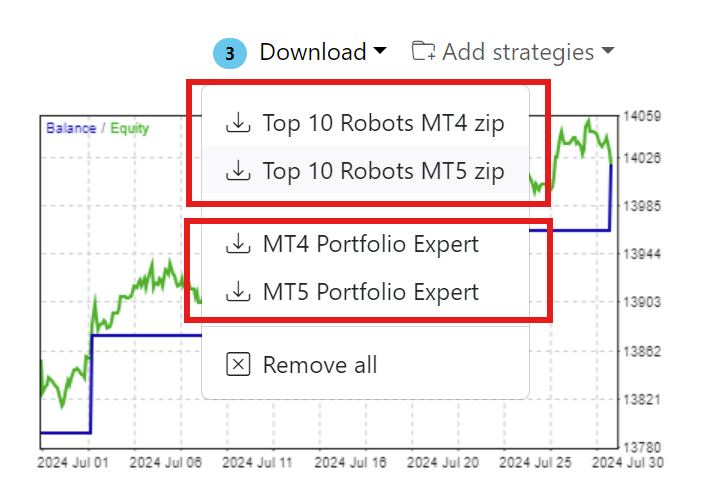
Or you can put all of the robots from one asset into a portfolio robot by adding them to a zip file. You add the top 10, and you can download them as a zip, or you can download them as a Portfolio of Expert Advisors.
Installing MetaTrader and Connecting to Broker Server
The first thing you need to do after you download the compressed files is to unzip them. Right-click over the file hit on extract all. You can select the folder where you want to store them, and just click on extract. Once you have the Expert Advisors ready, what you need to do is to open a demo account with any regulated broker that offers MetaTrader platform.
After you register for a demo account, you need to install the MetaTrader platform on your computer or VPS server. You can install more than one platform on your computer if you just change the destination. For example, you can add a number to the name of the installation folder, and this way, you can install many platforms on your computer.
Once it’s installed, open the MetaTrader platform and login into your trading account. This will connect the account to the server of the broker. A good indication that you’re connected with the server of the broker is to see the bid and the ask prices, or the quotes provided from the broker.
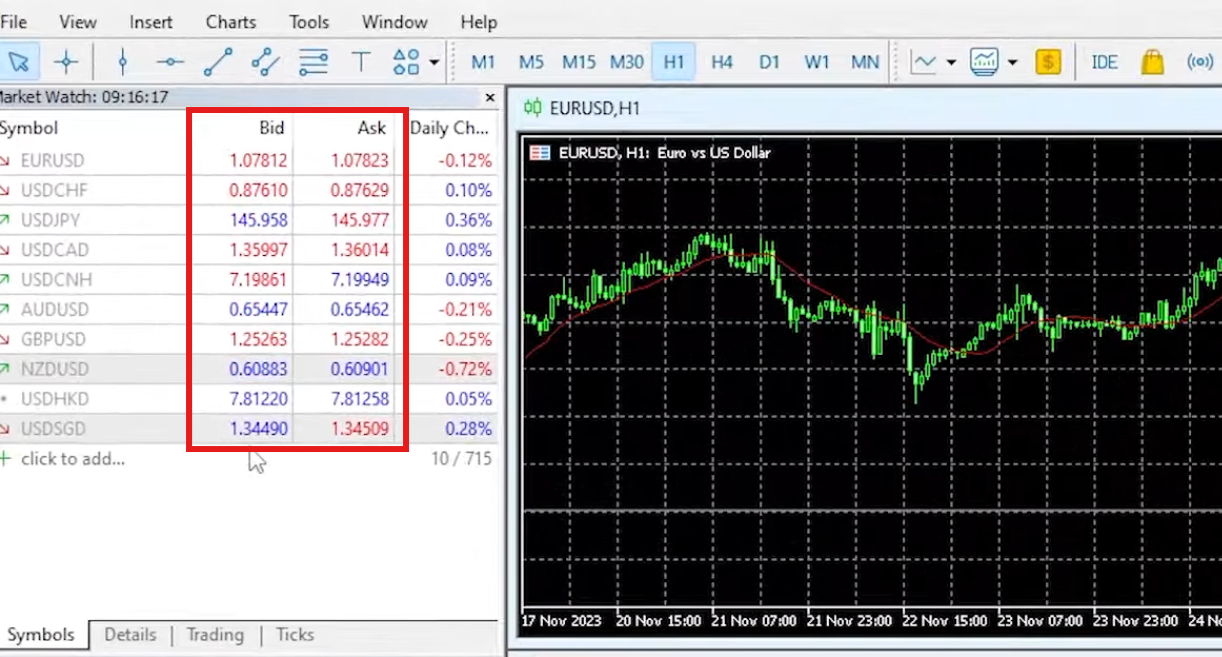
Installing EA’s on MetaTrader
To put the trading robots on MetaTrader, select the MT4 or MT5 Expert Advisors. Copy all of them and paste them in “File -> Open data folder -> MQL5 -> Experts. In MetaTrader 4 the process is similar, just instead of MQL5, the folder is called MQL4.
For detailed step-by-step instructions and troubleshooting tips on using MetaTrader, check out our in-depth MetaTrader course.
From the Top 10 Robots app you will get the source code of the Expert Advisor. If you double click on it, you can see all of the code behind the robot. Which means that we will provide you with the source code. There is nothing hidden, and you can see what is inside. If you’re an experienced developer, you can modify or change anything you decide. If you are not, you need to compile it, and this will create the ready-to-use file. You need to do the very same thing for the rest.
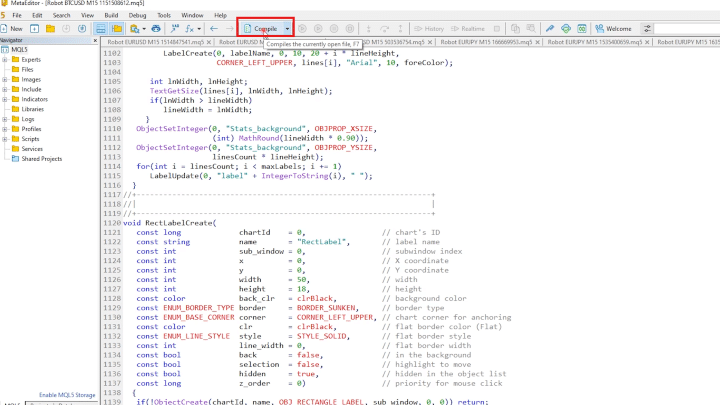
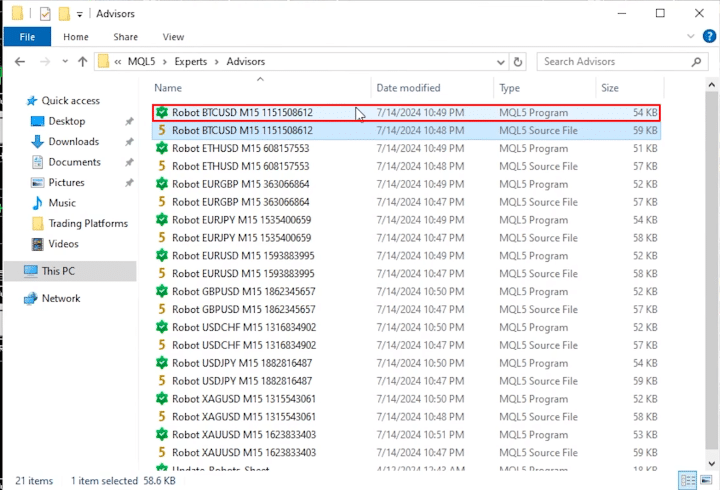
Next step is to start placing the robots on the charts. All of them should be on the M15 time frame. First, you need to enable the algo trading, and then just drag and drop the first Expert Advisor. You can see the inputs of the Expert Advisor. Just click on okay and you will see how the indicators are displayed over the charts.
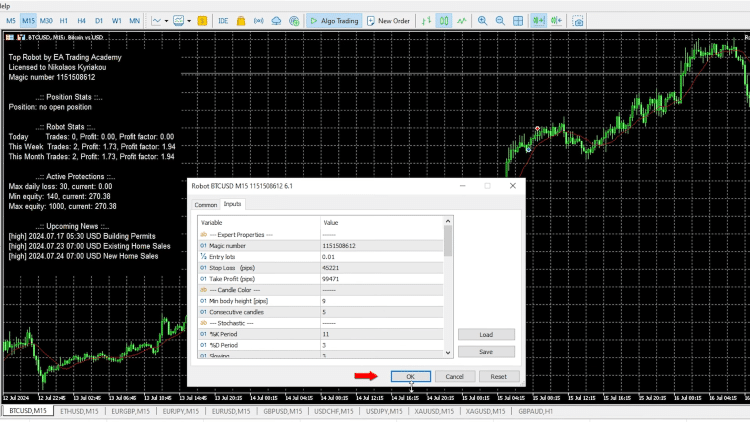
So you can follow along with the strategy that executes the trades, and there is some information about the expert, the stats, which you will see from the inputs. Once you click on okay, all changes will be saved and displayed on the chart.
And it’s the very same thing you have to do for the other nine Expert Advisors. First, open a new chart window, switch to M15 and drag and drop it over the chart and click on okay. This will display the indicators and it will attach the expert on the chart. So once you set it, you don’t need to do anything else, and it takes just a few minutes.
Trading with the Portfolio Expert Advisor
The easier option is to trade the Portfolio Expert Advisor. Copy it, go to “File-> Open Data Folder” and put it together with the rest of the Expert Advisors and double click on it. Just compile it, and you will also see it in the Navigator. Open one more chart window, and just switch to M15, and double click on it. If you click on okay, it will attach the Portfolio Expert Advisor on one chart, which means that all of the 10 strategies or the 10 robots will trade on one single chart.
Tracking Performance with Magic Number Series
The Portfolio Expert Advisors use a magic number system that makes performance tracking incredibly simple when you’re running multiple asset packages.
How the numbering works:
EUR/USD strategies use magic numbers starting with 100 (100, 101, 102… through 109 for the 10 strategies). Gold strategies start with 200 (200-209). Bitcoin begins at 300. This systematic numbering lets you instantly identify which asset and which specific strategy executed each trade.
When you connect your MetaTrader account to MyFXBook or FXBlue, these magic numbers appear in your trade history. Filter by magic number range, and you immediately see performance broken down by asset type and individual strategy within each package.
This becomes crucial when you’re testing 30 EAs simultaneously (Top 10 EUR/USD, Top 10 Gold, Top 10 Bitcoin). Without a magic number organization, tracking which strategies profit and which lose becomes nearly impossible. With it? You check MyFXBook weekly, sort by magic number, and identify top performers instantly.
Activating Only Top Performers in Portfolio EAs
The Portfolio Expert Advisor contains code for all 10 strategies. By default, every strategy activates when you attach it to a chart. But you don’t want that after identifying top performers through your testing account.
The modification process:
Right-click on the Portfolio EA in Navigator, select “Modify.” MetaEditor opens, displaying the source code. You’ll see sections for each of the 10 strategies within the package.
Each strategy has two forward slashes at the beginning of certain lines; these comment out the code, deactivating that strategy. By default, most strategies lack these slashes, meaning they’re active.
To deactivate a strategy:
Add two forward slashes (//) at the start of the relevant code lines for that strategy. This comments out the code without deleting it.
To activate a strategy:
Remove the two forward slashes if present. The code becomes active again.
After making changes, click “Compile” in MetaEditor. The modifications save, and only your selected strategies will trade when you attach the EA to charts.
Practical application:
Your testing account identifies that EUR/USD strategies ending in 06 and 08 currently perform best. Open your live account’s Portfolio EA code, deactivate all strategies except 06 and 08 by adding comment slashes to the others. Compile, attach to the chart, now only proven performers trade live.
Check the testing account performance weekly. If strategy 06 weakens and strategy 04 strengthens, modify the code again. Remove slashes from 04, add them to 06. This rotation keeps your live account trading only current top performers.
Using the News Filter
To avoid high-impact news events that can cause market fluctuations, you can use the News filter. Set it to disable trading during these times, ensuring your strategies remain effective and your risk is minimized. The news filter is a valuable tool that prevents the EAs from trading when significant economic announcements are expected. This helps to avoid unexpected market movements that could negatively impact your trades. Check out our Knowledge Base section about the News Filter to see all the options explained.
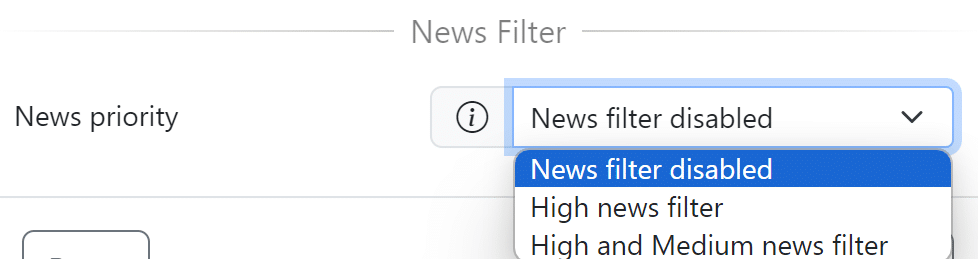
The news filter settings can be adjusted to account for high and medium-priority news. For instance, you can set the filter to prevent trades two minutes before and five minutes after high-impact news events. This buffer period ensures that the market has time to stabilize before the EAs resume trading.
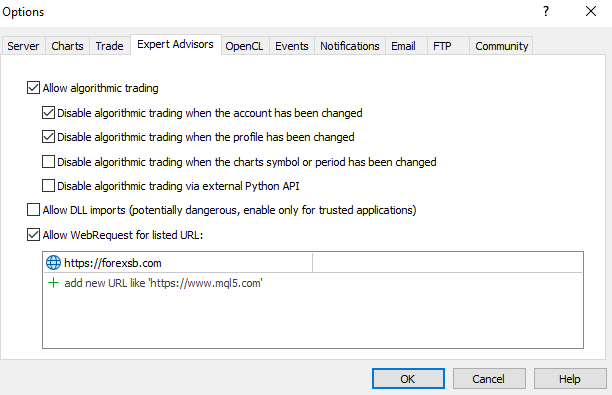
To use the News Filter, on your MetaTrader platform, click on Tools -> Option. Navigate to the Expert Advisors tab. Enable the check box “Allow WebRequest for listed URL“. Add the following URL in the box below: https://forexsb.com. This is the URL of our news service. Note, you only need to do this once. It will apply to all EAs installed, and all of those that will be installed.
Backtesting the Expert Advisors
Now we will cover the process of backtesting the Top 10 Robots on MetaTrader.
Right-click on any of the EAs in the Navigator and press on test. The Strategy Tester will open below, and you have the Expert you’ll be testing, the symbol, the time frame. You can select if you want to test it for the entire history that the broker provides, or for the last one month, last one year, or you can select a custom period.
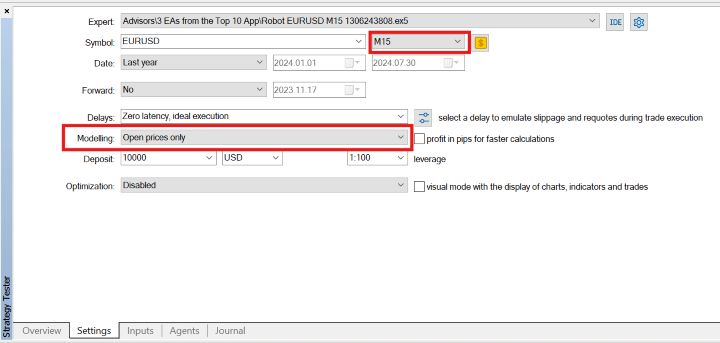
As modeling, we suggest you use “Open prices only” because the strategies behind the robots work at the opening of the bar. Then click on start at the bottom right corner. The backtest is usually very quick, and if you look at the backtest outcome, you can see the results. If you want to test any of the other expert advisors, simply select the arrow for the drop-down menu and select it. Press start on the right side and you will see the graph for the selected expert advisor.
The Over-Optimization Problem
Looking at backtest results, you might notice the equity curves aren’t perfectly smooth upward lines. That’s intentional, and here’s why it matters.
Perfect backtest lines typically indicate over-optimization. Strategies become so precisely fitted to historical data that they fail when market conditions shift even slightly. You’ve seen EAs on MQL5 Marketplace with flawless backtests; they sell better because perfect curves attract buyers.
But as actual traders testing these systems, we prefer logical strategy rules over a perfect historical fit. A strategy using reasonable stop loss levels (10-100 pips), standard indicators, and sensible entry logic will show realistic drawdown periods in backtests.
Those drawdown periods? They’ll likely appear in live trading too. Better to see them in backtests and prepare mentally than encounter unexpected losses live after being conditioned by perfect curves.
Our focus: current profitability
We test EAs on demo accounts and track which ones profit now, not which ones show the prettiest historical charts. Market conditions change. Strategies that worked perfectly in 2020 might struggle today. Rather than chasing historical perfection, we rotate based on current performance data from our testing accounts.
This philosophy explains why we check MyFXBook weekly and swap underperformers for new top-ranked strategies. We want EAs profitable in today’s markets, not yesterday’s perfectly-fitted backtests.
| Approach | Account Type | Strategies Active | Purpose | Connected To |
| Full Testing | Demo | All 30 EAs (3 packages × 10 strategies) | Identify current top performers | MyFXbook/FXBlue with magic number tracking |
| Selective Deployment | Demo or Live | Top 3-5 performers only | Trade proven winners | Optional tracking for verification |
| Weekly Rotation | Live | Updated based on testing results | Maintain edge with current market conditions | Modify Portfolio EA code to activate/deactivate |
Continuous Updates and Live Trading Simulation
What makes The Top 10 Robots App one of the best automated trading app, emphasizes continual refinement and relevance through daily updates with new historical data. At the end of the generating process, the software merges and revalidates all of the strategies. This means that the app validates the existing strategies but it adds new strategies to the collection. The platform does not change existing strategies – if they perform well, the app will display them. If they are profitable, they will stay on the app. The app add new ones if simply there are better strategies.
The key point here is that the app tests these strategies with new historical data every day. This is a pure simulation of live trading. How this works ? Each of the three servers sends all of the strategies into a central server. There the software validates the strategies or this is where this simulation happens. That central server keeps the top 100 strategies for each asset, but the app displays just the top 10 trading bots. As a result, we see the most stable strategies, the ones that were profitable in the past and they are profitable in the current market conditions.
The Demo-to-Live Selection Process
Here’s the testing approach that actually works in practice. You need two accounts, one for comprehensive testing, one for deploying winners.
Account 1: Full Testing Environment
Open a demo account and place all 30 Portfolio EAs if you’re trading three asset packages (EUR/USD, Gold, Bitcoin). Every strategy runs continuously, generating trade data across all 30 robots.
Connect this account to MyFXBook or FXBlue. Let it run for at least one week, preferably longer. The account will open and close numerous trades as all strategies execute their signals.
The weekly review process:
Check MyFXBook at week’s end. Filter trades by magic number to see individual strategy performance. Perhaps the EUR/USD strategy ending in 06 generated strong profits, while strategy 03 lost. Gold strategy 08 performed well. Bitcoin strategy 01 showed consistency.
Identify the top three to five performers across your testing period, maybe one week, perhaps one month, depending on your preference.
Account 2: Selected Winners Only
Now comes the interesting part. In your second account (can be another demo or move straight to live), deploy only Portfolio EAs with top-performing strategies activated.
Real example from actual testing:
During the week of November 27 to December 1, a full testing account with all 30 strategies showed a declining balance. Not unusual, when you test everything, losing weeks happen.
But by filtering MyFXBook data, specific strategies remained profitable during that exact period. Deploying only those top three strategies on a separate Darwinex live account produced positive results for the same timeframe.
The testing account dropped. The selective live account profited. Same week, different outcomes based on strategy selection.
Conclusion
In wrapping up, the Top 10 Robots App stands as a testament to the power of automation in trading. By leveraging cutting-edge technology, this app simplifies the complex world of trading robots, making it accessible for traders at all levels.
With features designed to save time and enhance accuracy—such as backtesting, performance metrics, and a straightforward download process—traders are equipped to make informed decisions swiftly. This app not only streamlines the setup and deployment of trading strategies across various assets but also ensures that these strategies are robust, tested, and ready for the dynamic nature of global markets. As trading evolves, the Top 10 Robots App continues to be an invaluable tool for achieving trading efficacy and success.
If you want to see how the Top 10 Robots App works and what other possibility gives you, we encourage you to test it out here.
For traders interested in deeper insights, Algo Trading Space offers a VIP Club that provides exclusive access to our complete trading results dashboard, priority support, and early intelligence on high-performing EAs before they become public knowledge. Members also get downloadable set files, access to our private Discord community, and our full course library.
Frequently Asked Questions
How do I know which strategies in my Portfolio EA are currently trading?
Right-click the Portfolio EA in Navigator, select “Modify” to open MetaEditor, and view source code. Active strategies lack two forward slashes (//) at the start of their code sections. Deactivated strategies show // commenting out their code. You can also check your MyFXBook or FXBlue account filtered by magic numbers; only active strategies will show recent trades. For the EUR/USD Portfolio EA, magic numbers 100-109 correspond to strategies 01-10, allowing precise identification of which strategies executed recent trades.
Should I test all 30 EAs on a live account or start with just the top performers?
Start with two demo accounts, one testing all 30 EAs, one deploying only the top 3-5 performers identified through MyFXBook weekly analysis. This approach proved profitable during the November 27-December 1 testing period when the full demo account declined, but the selective account remained profitable using only verified top performers. Once comfortable with the selection process and seeing consistent results on your selective demo account, move to live trading with the proven top performers only, not all 30 strategies.
How often should I rotate strategies between testing and live accounts?
Check MyFXBook or FXBlue weekly to review strategy performance filtered by magic numbers. If a strategy in your live account weakens while a different strategy in your testing account strengthens, modify your Portfolio EA code by commenting/uncommenting the relevant strategies. Most traders rotate weekly or bi-weekly based on performance data. The Top 10 Robots App updates strategies regularly, so checking for new top performers weekly ensures you’re always trading current market leaders rather than outdated strategies.
Further Reading
- What Is Prop Firm Trading
- What Is the Consistency Rule in Prop Firms
- How To Pass Prop Firm Challenges
- Darwinex Zero vs Prop Firms
- Prop Firm vs Live Accounts
- Prop Firm vs Personal Capital
- Best EA For Prop Firm Challenges
- Prop Firm Robots App Complete Guide
- Best Prop Firms
- How The Top 10 Robots App Works
- How To Manage Multiple Prop Firm Accounts


