 Petko Aleksandrov
To backtest an EA in MT4, open the Strategy Tester (press Ctrl+R or go to View > Strategy Tester), select the Expert Advisor (EA) you want to test from the dropdown menu, choose the currency pair and timeframe, pick a tick model, set the date range, and press Start. MT4 will simulate the strategy on historical data and produce results showing profit, drawdown, trade count, and equity curve. The whole testing process takes minutes, but the settings you choose and the data you feed it determine whether those results mean anything.
Quick Steps
| Step | Action |
| 1 | Install the EA file in the MQL4 > Experts folder |
| 2 | Restart MT4 or refresh the Navigator panel |
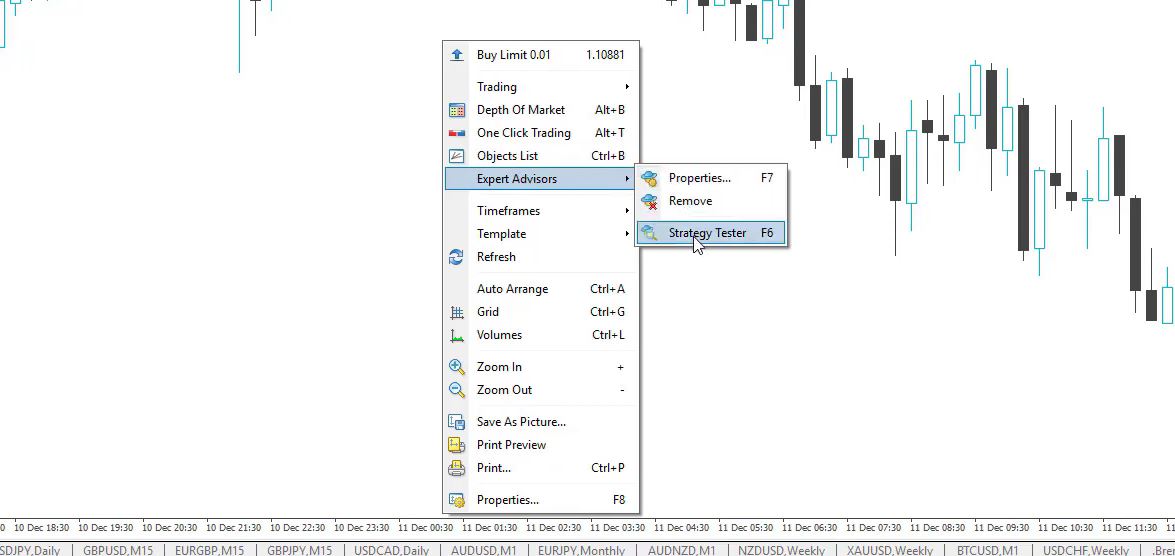
| 3 | Press Ctrl+R to open Strategy Tester |
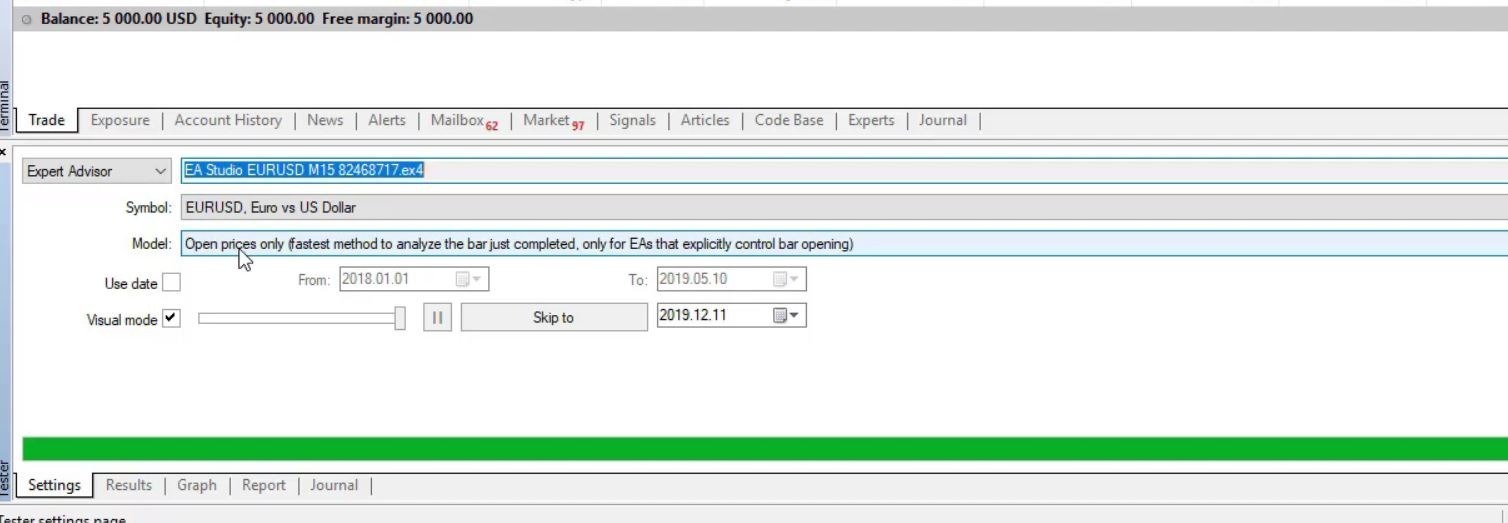
| 4 | Select the EA from the Expert Advisor dropdown menu |
| 5 | Choose the symbol, timeframe, and date range |
| 6 | Select the testing model (Every Tick, Control Points, or Open Prices Only) |
| 7 | Set spread and EA input parameters under Expert Properties |
| 8 | Press Start and wait for the green bar to complete |
| 9 | Review the Results, Graph, Report, and Journal tabs |
| 10 | Re-test with better data and different brokers before using live capital |
The rest of this article fills in the context behind each step: how to install an EA, how each Strategy Tester setting works, how to read the report correctly, and how to avoid the most common mistakes that lead forex traders to trust backtest results they should not trust. No programming skills are needed; the MT4 Strategy Tester handles everything through its interface.
What Backtesting in MT4 Actually Means
When you backtest an Expert Advisor in MetaTrader 4, you are telling the platform to replay historical market data through the EA’s trading logic. According to MetaQuotes (the developer of MetaTrader), the Strategy Tester walks through past price bars, or ticks depending on your model, and executes trades exactly as the EA’s code dictates. It records every entry, every exit, every profit, and every loss. At the end, you get a report showing what would have happened during that historical period.
Why does this matter? Testing an EA on a live demo account takes weeks. Backtesting compresses months or years of market data into a single run that finishes in minutes. You can quickly evaluate whether a strategy has any edge before committing real capital.
A few things worth keeping in mind from the start:
- Backtesting shows past performance. It does not guarantee future results. This is true for every trading strategy, manual or automated.
- The backtest is the reality. Looking at indicators on a chart in hindsight is misleading because many indicators repaint, as noted in MetaQuotes’ MQL4 documentation on indicator behavior. The Strategy Tester’s trade log shows exactly when trades were opened and closed based on the EA’s actual code.
- Most professional forex traders test across multiple brokers and data sets before trusting any single backtest.
Key MT4 Backtesting Terms
| Term | Meaning |
| Expert Advisor (EA) | An automated trading robot used in MetaTrader |
| Strategy Tester | MT4’s built-in tool for testing EAs on historical data |
| MQL4 | The programming language used for MT4 Expert Advisors, indicators, and scripts |
| .ex4 file | A compiled EA file that MT4 can run directly |
| .mq4 file | A source-code file that can be edited and then compiled |
| Tick model | The method MT4 uses to simulate price movement during the test |
| Every Tick | The most detailed native MT4 testing model |
| Control Points | A faster but less accurate testing model |
| Open Prices Only | A fast model that tests only at the open of each candle |
| Modeling quality | MT4’s estimate of the historical data accuracy used in the backtest |
| Visual Mode | A Strategy Tester mode that replays trades on a chart for visual inspection |
| Forward testing | Running the EA on a demo account in real time after backtesting |
Before You Begin: Installing an EA and Loading Historical Data
Before you can test anything, two things need to be in place: the EA file and the data.
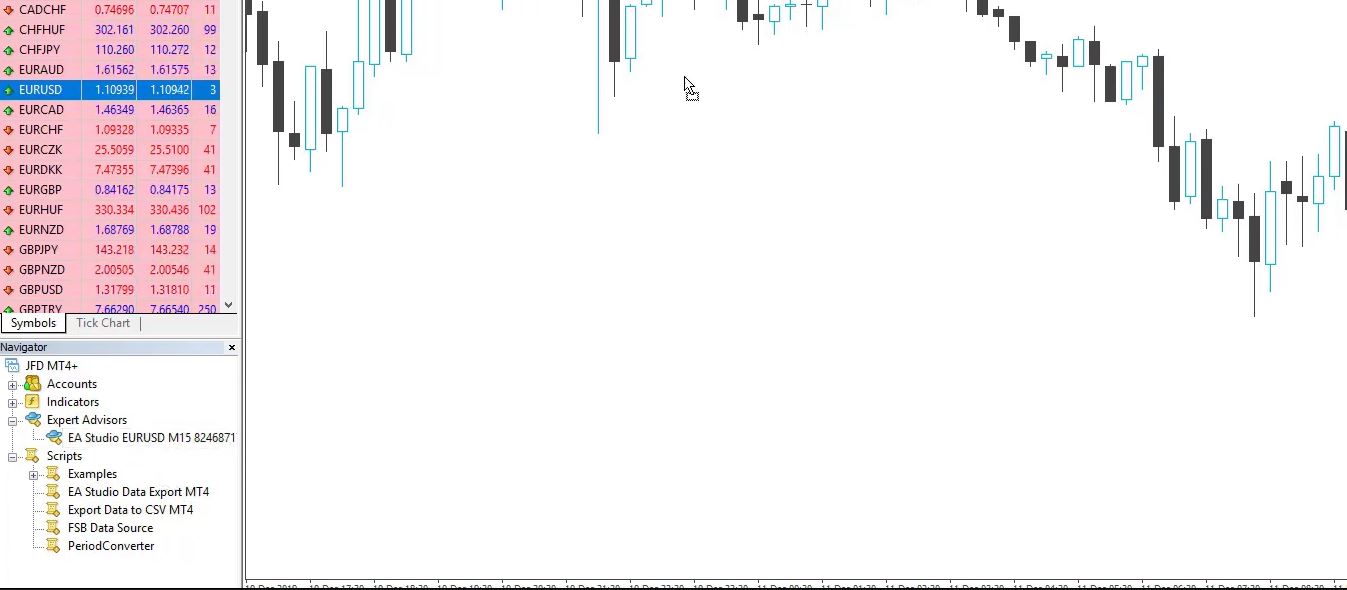
Installing the EA: If the Expert Advisor is not already visible in your MT4 Navigator panel under “Expert Advisors,” place the file manually. According to MetaQuotes’ MQL4 file structure documentation, EA files belong in the MQL4 > Experts folder:
- Open MT4 and go to File > Open Data Folder.
- Open the MQL4 > Experts folder.
- Copy the EA file (.ex4 or .mq4) into that folder.
- Restart MetaTrader, or right-click the “Expert Advisors” section in the Navigator and select Refresh.
The EA should now appear in the list. If it does not, double-check the file location and restart the platform. If you want ready-to-test robots, the free EA library from Algo Trading Space includes EAs formatted for direct MT4 use.
Loading historical data: MT4 uses its built-in data for backtesting, but the default data is often incomplete, especially on smaller timeframes. To load more market data:
- Go to Tools > Options > Charts and set “Max bars in history” and “Max bars in chart” to a large number (e.g., 999999999).
- Press F2 to open the History Center.
- Select the currency pair you plan to test (e.g., EURUSD).
- Double-click each timeframe to load it, then click Download.
- Restart MT4.
This gives the Strategy Tester more data to work with. For higher accuracy, many traders download tick data from external sources such as the Historical Data App and import it into the platform. The broker’s built-in data is sufficient for a first-pass screening, but dedicated tick data produces more realistic results for final decisions.
How to Open and Configure the MT4 Strategy Tester
Press Ctrl+R or go to View > Strategy Tester. A panel appears at the bottom of your MT4 window. This is where all the configuration happens.
Here is what each setting means, as documented in the MetaQuotes Strategy Tester documentation:
| Setting | What to Do | Why It Matters |
| Expert Advisor | Select the EA from the dropdown menu | Chooses which robot to test |
| Symbol | Choose the currency pair, such as EUR/USD | Must match the pair the EA was designed for |
| Model | Select Every Tick, Control Points, or Open Prices Only | Controls how accurately price movement is simulated |
| Use Date | Check box, set From and To dates | Defines the historical test period |
| Period | Select the timeframe (M1, M5, M15, H1, etc.) | Must match the timeframe the strategy targets |
| Spread | Current or a fixed value in points | Affects the cost of each simulated trade |
| Visual Mode | On or off | Shows trades on the chart; slower but useful for understanding behavior |
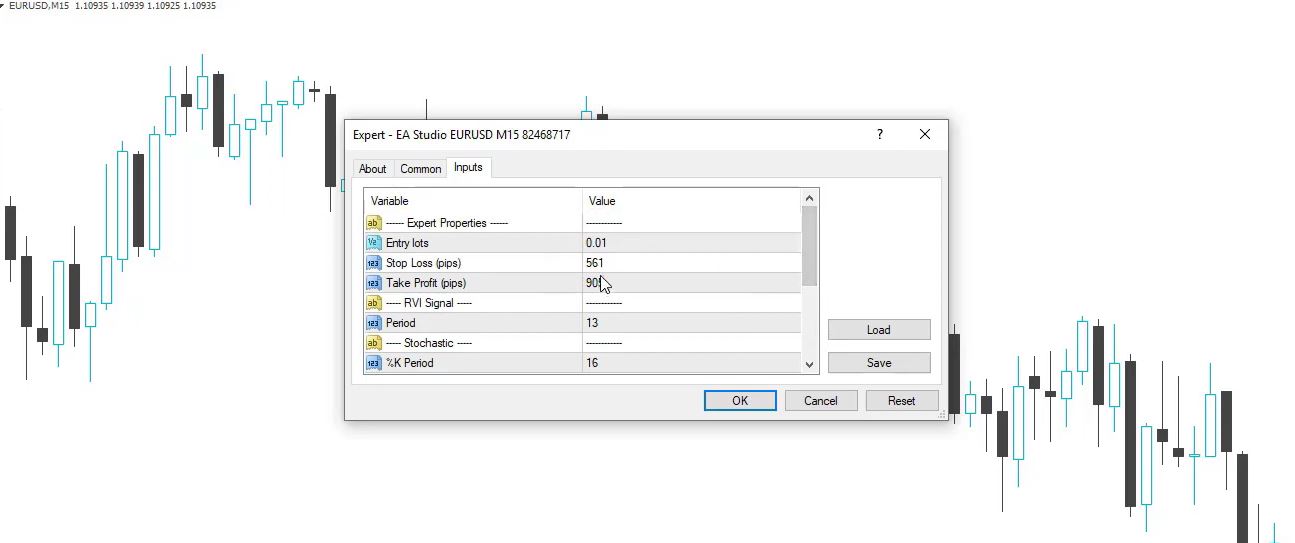
Before pressing Start, click Expert Properties to adjust the EA’s input parameters: lot size, stop loss, take profit, and any custom settings the developer included. The inputs vary from EA to EA. Strategies built in EA Studio typically use open-price logic per the EA Studio documentation, which means they are designed for the “Open Prices Only” model.
Choosing the Right Tick Model
This is one of the most important decisions in the backtesting process. MT4 offers three options, as described in MetaQuotes’ Strategy Tester documentation:
| Model | Speed | Accuracy | Best For |
| Every Tick | Slow | Highest native accuracy | Final decision-grade testing |
| Control Points | Medium | Moderate | Quick screening of many EAs |
| Open Prices Only | Fast | High for bar-open strategies | EAs built to trade on candle open signals |
- Every Tick simulates every price change within each bar by reconstructing tick data from smaller timeframes. Slower, but the most realistic native option.
- Control Points uses the nearest smaller timeframe to generate price points. Acceptable for quick screening, not for final decisions.
- Open Prices Only tests the EA only at the open of each bar. The fastest model, appropriate for strategies coded to trade on bar-open signals.
Once configured, press Start. The green progress bar fills twice: the first pass loads data, the second runs the actual test.
Running the Test and Reading the Results
After the Strategy Tester completes the run, four tabs appear.
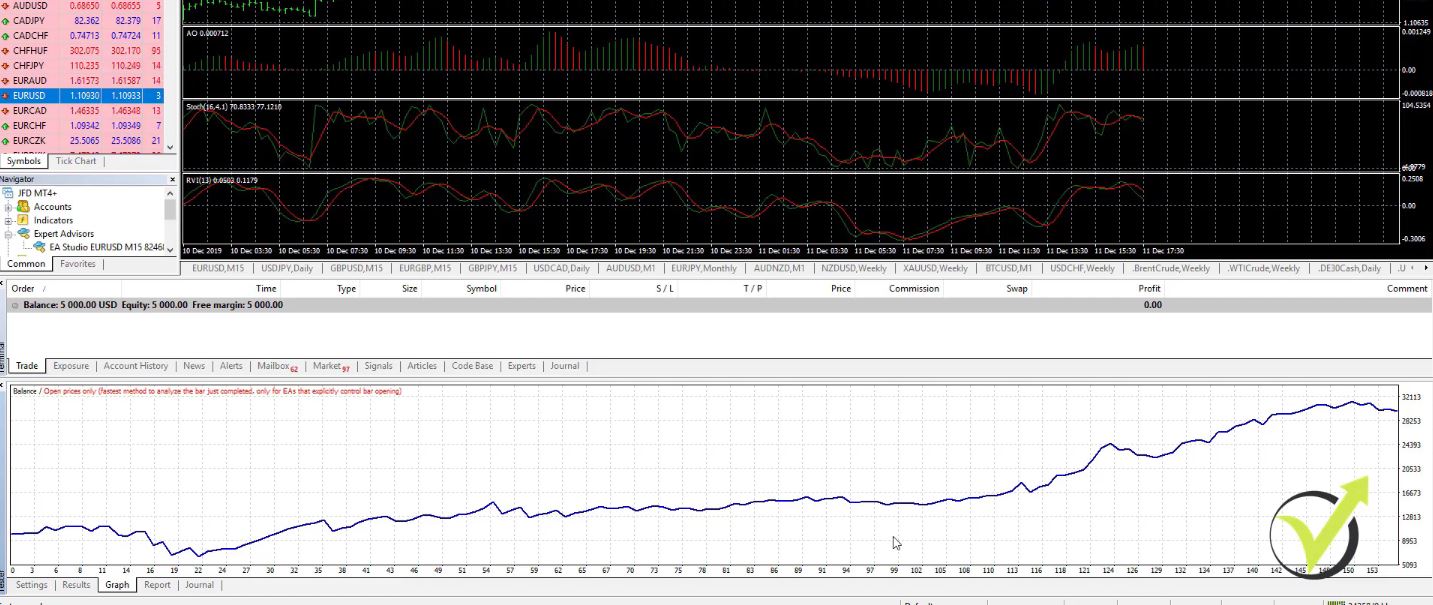
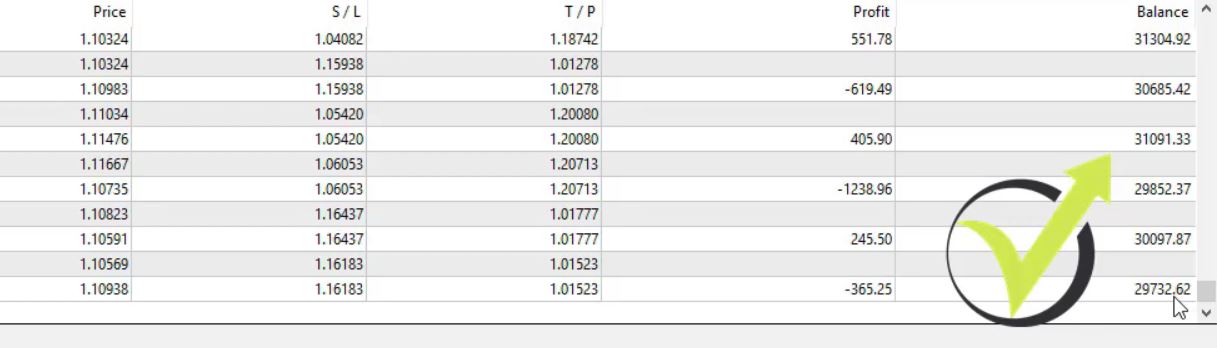
Results tab: The raw trade log: every trade opened and closed during the test. Order number, type (buy or sell), lot size, open and close price, stop loss, take profit, profit or loss, and running balance. Scroll to the bottom to see the final balance.
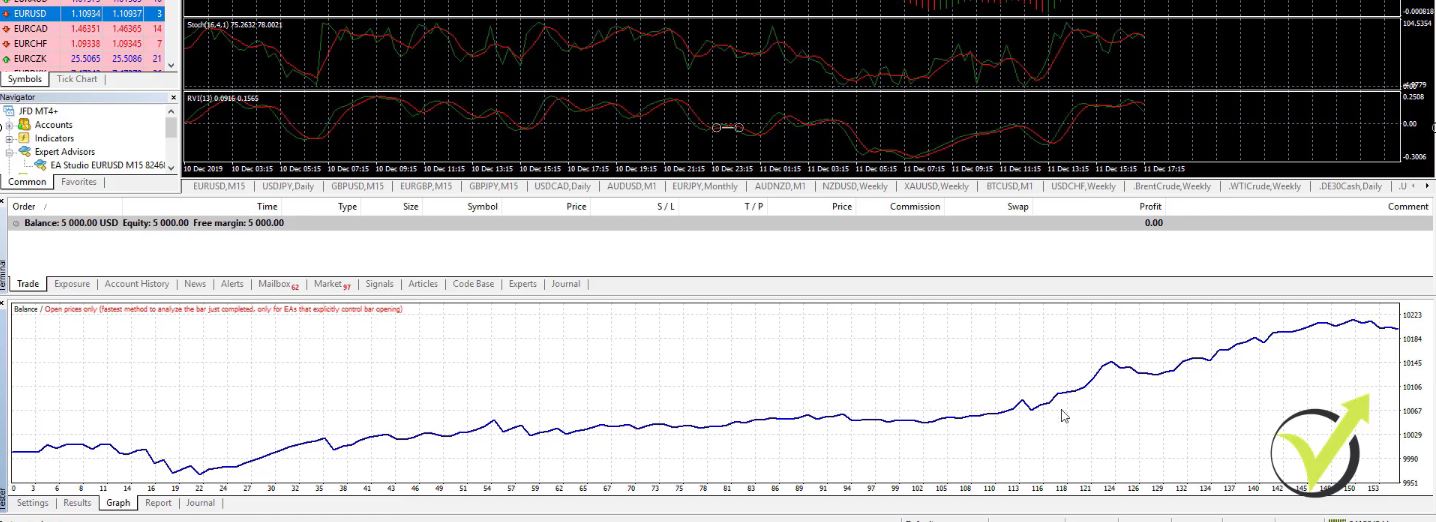
Graph tab: The equity curve. A smooth, upward-sloping line suggests consistency. Sharp drops indicate periods of heavy drawdown. Most experienced traders check the graph first for an instant visual read.
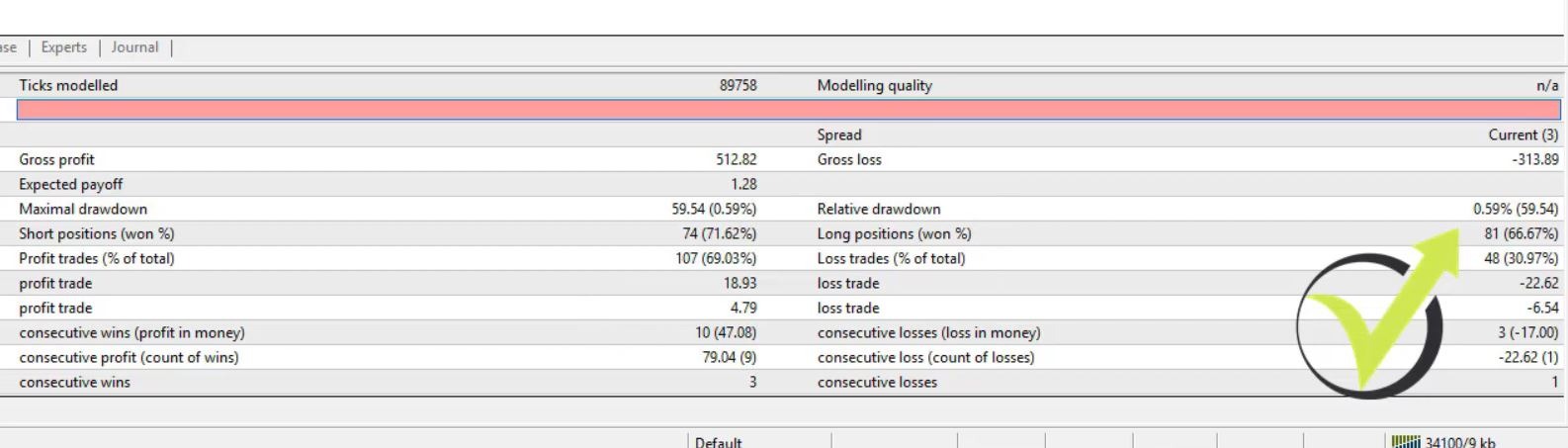
Report tab: The key statistics:
| Metric | What It Tells You |
| Total net profit | Total gain or loss across all trades |
| Gross profit / Gross loss | Sum of winning trades and sum of losing ones |
| Profit factor | Gross profit divided by gross loss; many traders treat 1.3-2.0 as a useful starting range, judged alongside drawdown and trade count |
| Maximal drawdown | Largest peak-to-trough equity decline; your worst historical loss |
| Total trades | Number of trades executed; more trades generally means more statistical confidence |
| Expected payoff | Average profit per trade |
| Modeling quality | How accurately the test data represents real price movement; many MT4 users treat 90% as a minimum standard per MetaQuotes documentation |
Journal tab: Technical execution logs. If the EA produced errors during the test, they appear here.
A strategy with a smooth equity curve, reasonable profit factor, manageable drawdown, and several hundred trades across different market conditions is a candidate for forward testing on a demo account. Keep in mind: a good backtest is a necessary first filter, not a live-performance guarantee.
Best MT4 Backtest Settings for Most EAs
| Setting | Recommended Choice |
| Model | Every Tick for final testing; Open Prices Only for bar-open EAs |
| Spread | Fixed realistic spread based on broker conditions (e.g., 10-20 points for majors on a 5-digit broker) |
| Date range | At least 2-3 years when possible |
| Timeframe | The timeframe the EA was designed for |
| Visual mode | Use only for understanding behavior, not bulk testing |
| Modeling quality target | Treat anything below 90% with caution |
| Data source | Use broker data for screening; tick data for final validation |
How to Get Better Market Data for Accurate Backtests
The most common reason for misleading backtest results in MT4 is incomplete or low-quality data. If the broker’s data has gaps, the Strategy Tester fills in the missing bars with interpolation, which can produce unrealistic fills.
Here is how to check and improve your data:
- After every test, check the modeling quality percentage in the Report tab. On MT4, anything below 90% should be treated with caution.
- Press F2 to open the History Center and inspect the range for your pair. If it only covers a year or two, that may not be enough for a meaningful analysis.
- Download tick data for higher accuracy. The Historical Data App provides clean forex data across major pairs and timeframes. Third-party tools like the Tick Data Suite (documented at tickdatasuite.com) can inject real historical tick data and variable spread into the Strategy Tester, raising modeling quality to 99%.
A practical two-step approach: screen many EAs quickly using the broker’s built-in data with “Open Prices Only” or “Control Points.” Then re-test your shortlist with tick data before making any live deployment decisions. This saves time without sacrificing accuracy where it matters.
It is also worth testing on more than one broker’s data. Different brokers provide slightly different bid and ask prices, spreads, and candlestick formations. A strategy that backtests well on one broker but poorly on another may be too sensitive to data quality to trust. The broader Expert Advisor backtesting guide on Algo Trading Space covers multi-broker validation and out-of-sample testing in more detail.
Using Visual Mode to Watch the Strategy in Action
Visual mode is one of MT4’s most underrated features. When you check the “Visual Mode” box (labeled “tester visual” in some platform versions) and press Start, the Strategy Tester opens a separate chart window and replays price action in real time, showing exactly where trades were opened and closed.
This is useful for several reasons:
- You can watch the EA react to different market conditions.
- Green arrows mark long entries; red arrows mark shorts. Blue lines show profitable closes; red lines show losses.
- A speed slider lets you control the simulation pace: slow it down to study individual trades, or push it to maximum to finish quickly.
- At the end, the chart displays the indicators the EA uses, which helps you understand the strategy’s logic.
Visual mode is not the fastest way to test. It is the best way to understand an EA you have never seen before. Run the first backtest in visual mode to see how the robot trades, then switch to non-visual for the actual numbers.
One point from the original article on this page worth repeating: do not try to figure out trading strategies by looking at indicators on a historical chart. Many indicators repaint, which means what you see now is not what was visible when the bar formed. The backtest trade log is the accurate record. The chart is the approximation.
Common MT4 Backtesting Mistakes and How to Fix Them
| Problem | Likely Cause | Fix |
| EA does not appear in the dropdown menu | File not in MQL4/Experts folder or MT4 not restarted | Place .ex4 or .mq4 in the correct folder and restart MT4 |
| No trades appear after the test | Wrong symbol, timeframe, date range, or EA input settings | Verify the pair, period, and date range match the EA’s design; check Expert Properties inputs |
| Modeling quality is very low | Incomplete historical data or data gaps | Load more data via F2, or import tick data from the Historical Data App |
| Results look unrealistically good | Over-optimization or unrealistic spread/slippage | Re-test with realistic fixed spread and tick data |
| Backtest differs from demo performance | Spread, slippage, or different broker data | Forward-test on demo and compare across multiple brokers |
| Test runs extremely slowly | Every Tick model with visual mode on a large date range | Disable visual mode for screening; use Open Prices Only for first pass |
The biggest conceptual mistake is trusting a single backtest on a single broker’s data with a single parameter set. Robust EAs produce reasonable (not perfect) results across different data sources and configurations. If the strategy only works with one exact setup, it is almost certainly over-fitted.
Frequently Asked Questions
Why does my EA not appear in the MT4 Strategy Tester dropdown?
The most common cause is the file being in the wrong folder. The EA file (.ex4 or .mq4) must be placed in the MQL4 > Experts directory inside the MT4 data folder, as specified in MetaQuotes’ MQL4 file structure documentation. After placing the file, restart MetaTrader 4 completely or right-click the “Expert Advisors” section in the Navigator and select Refresh. If the EA still does not show, confirm the file is not corrupted and that it was compiled for MT4, not MT5.
What is the best tick model for backtesting in MT4?
For final, decision-grade testing, use “Every Tick.” It simulates the most granular price movement MT4 can reconstruct and produces the highest modeling quality natively. For quick screening of many Expert Advisors, “Open Prices Only” is faster and accurate for strategies built to trade on bar-open signals, such as those created in EA Studio. “Control Points” sits between the two but is generally less useful; most traders skip it in favor of one extreme or the other.
Should I use fixed spread or current spread when backtesting?
Use a fixed realistic spread based on your broker’s historical conditions for the pair and session you trade. For major forex pairs like EUR/USD during active London or New York hours, 10-20 points (on a 5-digit broker, equivalent to 1-2 pips) is a reasonable starting point. “Current” spread uses the live spread at the moment the test runs, which can be misleading if you run the test during a quiet weekend or off-hours session. A fixed spread gives consistent, repeatable results across multiple runs.
What does 90% modeling quality mean in MT4?
Modeling quality is MT4’s estimate of how accurately the historical data used in the test represents real price movement. According to MetaQuotes documentation, 90% is approximately the maximum MT4 can achieve natively using its “Every Tick” model with complete broker data. Higher accuracy (up to 99%) requires third-party tools like the Tick Data Suite, which injects real historical tick data and variable spread. Many traders treat 90% as a minimum standard for results worth acting on.
Why are my MT4 backtest results different from demo trading?
Several factors cause this gap. Live demo accounts face real slippage, variable spread, and broker execution conditions that the Strategy Tester does not fully simulate. The broker’s historical data may also differ slightly from the live data feed. Additionally, demo accounts sometimes use different liquidity models than live accounts, as noted in broker execution disclosures. To bridge this gap, always follow a strong backtest with several weeks of demo forward testing, and compare performance across at least two brokers.
Can I backtest an EA in MT4 without downloading tick data?
Yes. The MT4 Strategy Tester works with its built-in historical data and does not require external tick data for a basic test. The results will be less precise, particularly for strategies sensitive to intra-bar price movement and spread fluctuations, but the built-in models are sufficient for a first-pass screening. For a final validation before committing capital, importing tick data through the Historical Data App or Tick Data Suite produces more realistic numbers and raises modeling quality to 99%.
The safest path to trusting an Expert Advisor is to test it thoroughly before it touches live capital. Algo Trading Space offers a free beginner course that covers MT4 setup, backtesting, and live EA deployment step by step. If you want ready-to-test robots, the free EA library gives you a practical starting point. And for monthly updated strategies, live performance tracking, and direct support, the VIP Club is where serious traders go next. Reach out to the team whenever you need help reading your backtest results; that is what they are there for.