 Petko Aleksandrov
To backtest an Expert Advisor (EA) in MetaTrader, open the Strategy Tester (Ctrl+R in MT4, or View > Strategy Tester in MT5), select the EA you want to test from the dropdown menu, choose the currency pair and timeframe, set the date range and tick model, then press Start. The Strategy Tester will simulate the EA’s performance on historical data and produce a report with profit, drawdown, trade count, and equity curve. The quality of your backtest results depends entirely on the data you feed it and the settings you choose.
Quick Steps
| Step | Action |
| 1 | Install the EA file in the MetaTrader MQL4/MQL5 Experts folder |
| 2 | Restart MetaTrader or refresh the Navigator panel |
| 3 | Open the Strategy Tester with Ctrl+R |
| 4 | Select the Expert Advisor from the dropdown menu |
| 5 | Choose the symbol, timeframe, and date range |
| 6 | Select the tick model (Every Tick for accuracy, Open Prices Only for speed) |
| 7 | Set spread and configure EA input parameters via Expert Properties |
| 8 | Click Start and wait for the test to complete |
| 9 | Review the Results, Graph, Report, and Journal tabs |
| 10 | Re-test with better data, different brokers, and out-of-sample periods |
That checklist covers the mechanics. The rest of this article fills in the context: how each setting works, where the data pitfalls hide, how to read results without fooling yourself, and how to go beyond basic backtesting with out-of-sample and forward testing methods. Whether you use MT4 or MT5, the principles are the same; the interface differs slightly.


What Backtesting Actually Does and Why It Matters
When you backtest an Expert Advisor, you are running the EA’s logic against recorded market data from the past. According to MetaQuotes (the developer of MetaTrader), the Strategy Tester replays price movement bar by bar, or tick by tick depending on your settings, and executes trades according to the EA’s code. The output is a set of results showing what would have happened if you had been running that EA during that historical period.
This matters for a straightforward reason: testing an EA on a demo account in real time can take weeks or months. The backtesting process compresses that same analysis into minutes. You can test years of data in a single run, across multiple currency pairs and timeframes, and get a clear picture of the strategy’s behavior before risking any capital.
A few things backtesting tells you:
- Whether the strategy is profitable over the selected data range
- The maximum drawdown the EA produced during that period
- The total number of trades and win rate
- The profit factor (ratio of gross profit to gross loss)
- How the equity curve looks, whether it is smooth or jagged
A few things backtesting does not tell you:
- How the EA will perform in future market conditions
- Whether the strategy is over-fitted to the specific data range you tested
- How slippage and variable spread in live trading will affect the outcome
Key Backtesting Terms
| Term | Meaning |
| Expert Advisor (EA) | An automated trading program used in MetaTrader |
| Strategy Tester | MetaTrader’s built-in tool for testing EAs on historical data |
| Tick data | Historical data recording every individual price change |
| Modeling quality | A measure of how accurately the test data represents real price movement |
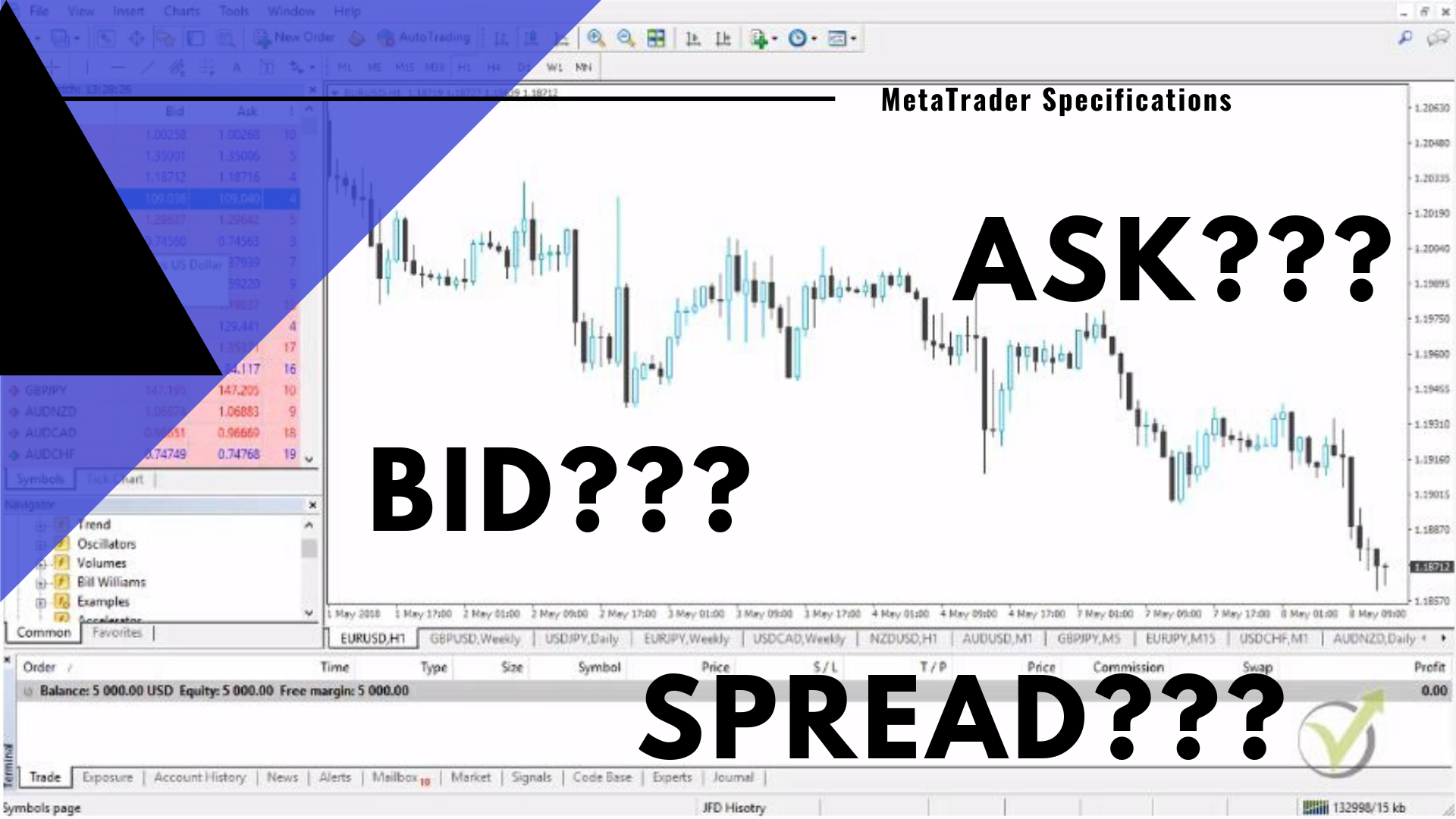
| Spread | The difference between bid and ask price |
| Slippage | The difference between expected and actual execution price |
| Drawdown | The decline from account peak value to its lowest point |
| Profit factor | Gross profit divided by gross loss |
| Out-of-sample testing | Testing on data not used to build or optimize the strategy |
| Forward testing | Running the EA in real time on a demo or live account |
| Curve fitting | Over-tuning a strategy’s parameters to match historical data too closely |
Step-by-Step: How to Backtest an Expert Advisor in MetaTrader 4
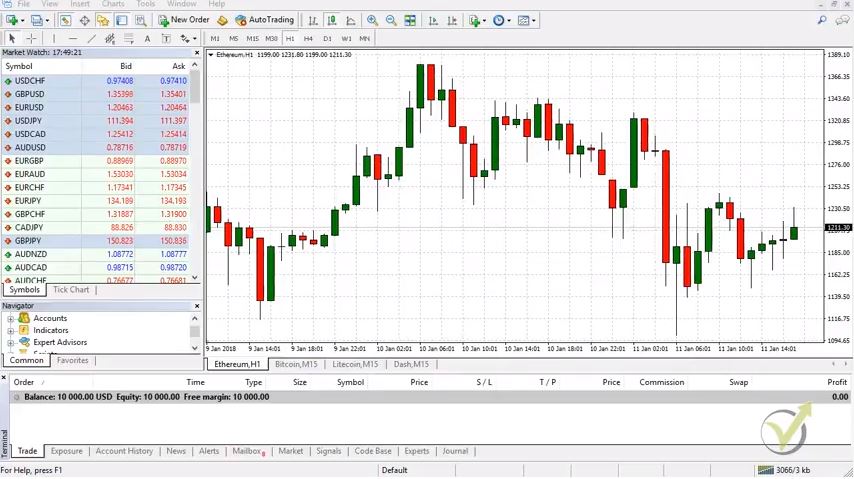
The MT4 Strategy Tester is where most forex traders start. The interface looks simple, perhaps deceptively so, because the settings you choose determine whether your backtest results mean something or nothing.
- Open the Strategy Tester
Two ways to access it:
- Press Ctrl+R on your keyboard.
- Or go to View > Strategy Tester from the top menu.
A panel appears at the bottom of your MetaTrader 4 window. This is where all the configuration happens.
Before running anything, confirm the EA you want to test is installed. If it is not already in the Navigator panel under “Expert Advisors,” copy the .ex4 or .mq4 file into the MQL4 > Experts folder inside your MT4 data directory (File > Open Data Folder), then restart the platform. According to the MQL5 documentation, the EA file must be in the correct folder for the Strategy Tester to detect it.
2. Configure Your Backtest Settings
Here is what each field in the Strategy Tester panel does:
| Setting | What to Choose | Why It Matters |
| Expert Advisor | Select the EA from the dropdown menu | This is the robot you are testing |
| Symbol | Choose the currency pair, such as EUR/USD | Must match the pair the EA was designed for |
| Model | Every Tick, Control Points, or Open Prices Only | Determines backtest accuracy; see below |
| Use Date | Check box, then set From and To dates | Controls which portion of historical data is used |
| Period | Timeframe (M1, M5, M15, H1, etc.) | Must match the timeframe the EA’s strategy targets |
| Spread | Current or a fixed value in points | Affects execution-cost realism in the test |
| Visual Mode | On or off | Shows trades on the chart in real time; slower but useful for understanding the strategy |
Choosing the right tick model is one of the most important decisions. As described in the MetaQuotes Strategy Tester documentation:
- Every Tick: The most accurate option. Simulates every price change within each bar using the smallest available timeframes. Slower, but produces the most realistic results.
- Control Points: A faster but less accurate method. Uses the nearest smaller timeframe to generate price points. Acceptable for quick screening, not for final decisions.
- Open Prices Only: Tests the EA only at the open of each bar. The fastest model, appropriate only for strategies specifically coded to trade on bar-open signals.
Once everything is set, click the Expert Properties button to adjust the EA’s input parameters (lot size, stop loss, take profit, or any custom settings the developer included). Then press Start.

The green progress bar fills twice. The first pass loads data; the second runs the actual backtest. When it finishes, the results populate the tabs at the bottom.

3. Read the Backtest Results
After the Strategy Tester completes the run, four tabs appear:
Results tab: Every individual trade: order number, open and close time, type (buy/sell), lots, price, stop loss, take profit, profit, and running balance.
Graph tab: The equity curve. A smooth, upward-sloping line suggests consistency. Jagged peaks and valleys suggest high drawdown or erratic behavior. This is usually the first thing experienced traders check.
Report tab: The key statistics:
| Metric | What It Tells You |
| Total net profit | The total gain or loss after all trades |
| Profit factor | Gross profit divided by gross loss; many traders treat 1.3-1.5 as a useful starting point, judged alongside drawdown and trade count |
| Maximal drawdown | The largest peak-to-trough decline in account equity |
| Total trades | How many trades the EA executed; more trades generally means more statistical significance |
| Expected payoff | Average profit per trade |
| Modeling quality | How accurate the test data was; aim for 90%+ on MT4 per MetaQuotes documentation, 99%+ with tick data tools |
Journal tab: Technical logs, errors, and execution details. If the EA threw errors during the test, they appear here.
How many trades is “enough”? Many traders prefer several hundred trades before trusting a backtest, though the required sample size depends on strategy frequency and holding period. A strategy with only 30 trades across five years may simply have gotten lucky.
How to Backtest in MetaTrader 5
The MT5 Strategy Tester is more powerful than its MT4 counterpart. The workflow is similar, but the interface and capabilities differ in meaningful ways.
Open it with Ctrl+R or go to View > Strategy Tester. The tester opens as a separate panel with its own tabs. Select the EA, choose the symbol, set the timeframe and date range, pick the tick model, and press Start. The results appear in the same Report, Graph, and Journal format.
Key Differences in the MT5 Strategy Tester
| Feature | MT4 | MT5 |
| Tick models available | Every Tick, Control Points, Open Prices Only | Every Tick, Every Tick (Real Ticks), 1-Minute OHLC, Open Prices Only |
| Real tick data | Not natively supported; requires Tick Data Suite or similar tools | Built-in support per MQL5 documentation; real ticks from broker servers |
| Multi-currency testing | Not supported | Supported; the EA can access data from multiple symbols simultaneously |
| Forward testing | Not built in | Built-in forward testing period can be configured |
| Optimization modes | Genetic algorithm only | Genetic, complete, and math calculations |
| Visual mode | Opens a separate chart window | More refined visual mode with improved charting |
| Maximum modeling quality | 90% native, up to 99% with Tick Data Suite | 99%+ natively with real ticks |
| Programming language | MQL4 | MQL5 (not compatible with MQL4 files) |
The biggest advantage of MT5 for backtesting is native access to real tick data. In MT4, reaching 99% modeling quality requires the Tick Data Suite (a third-party tool documented at tickdatasuite.com). In MT5, you can load real tick data directly from the broker’s servers, which makes the backtesting process more accurate without additional software.
Note: MT4 EAs (.ex4 files written in MQL4) cannot be loaded in the MT5 Strategy Tester. The two languages are not compatible per MQL5 language documentation. If you need to test the same strategy logic across both platforms, tools like EA Studio and Forex Strategy Builder Professional can export EAs for both MT4 and MT5 from a single strategy definition.
Getting Reliable Historical Data for Your Backtest
The single most common reason for misleading backtest results is bad data. If the historical data your broker provides is incomplete, full of gaps, or uses an overly simplified price model, the test will look better (or worse) than reality.
Here is what to check:
- Data completeness. Press F2 in MetaTrader to open the History Center. Select the symbol and timeframe you plan to test. If the data only goes back a year or two, you may not have enough history for a meaningful analysis.
- Modeling quality. After a backtest completes, check the modeling quality percentage in the Report tab. On MT4, anything below 90% should be treated with caution per MetaQuotes guidelines. On MT5 with real ticks, aim for 99%.
- Gaps. If you see large gaps in the price data (especially on smaller timeframes like M1 or M5), the results for those periods are unreliable.
To get better market data in MT4, many traders download history from external sources and load it into the platform manually. The Historical Data App from Algo Trading Space provides clean forex data across major currency pairs and timeframes, formatted for direct import into MetaTrader.
Tick Data and Modeling Quality
Tick data is the most granular form of market data available. Instead of recording just the open, high, low, and close of each bar, tick data captures every individual price change that occurred.
Why does this matter? If your EA makes decisions based on price movements within a bar (which most do), a backtest using tick data will produce more realistic results than one using interpolated control points. A variable spread record, which captures the actual bid-ask spread at each moment, adds another layer of realism by accounting for execution costs as they actually were, not as a fixed average.
The Tick Data Suite, documented at tickdatasuite.com, is the most widely used third-party tool for adding tick-level accuracy to MT4 backtests. It injects real historical tick data and variable spread into the Strategy Tester, raising modeling quality to 99%. In MT5, this functionality is built in natively, which is one of the platform’s main advantages for serious strategy testing.
A practical rule: if you are testing an EA you plan to trade with real money, use the highest-quality data available. If you are screening dozens of EAs quickly, open prices only or control points are fine for a first pass. Then re-test your shortlist with tick data before making a final decision.
Advanced Backtesting Methods
A standard backtest in the Strategy Tester is a good starting point, but it has a known weakness: the EA was often built using the same data it is being tested on. That creates a self-referencing loop where the strategy looks good because it was designed to look good on that specific data. To break that loop, you need methods that test on data the strategy has never seen.
Out-of-Sample Testing
Out-of-sample testing is perhaps the most reliable method for checking whether a strategy genuinely holds up beyond the data it was trained on.
The concept is straightforward. Split your historical data into two periods:
- In-sample period: The data the strategy is built on or optimized against.
- Out-of-sample period: A reserved portion the strategy has never encountered.
In EA Studio, this is built into the generator, as documented in the EA Studio user guide. You can select an out-of-sample percentage (10%, 20%, 30%, 40%, or 50%), and the software automatically generates strategies using only the in-sample portion, then tests them on the reserved data. If the equity curve stays positive during the out-of-sample period, that is a stronger signal than a clean backtest alone.

For example, with five years of historical data and a 20% out-of-sample setting, the generator uses the first four years to create the strategy and the final year to test it. That final year is the closest thing to a simulation of future performance you can get without actually waiting.
You can also use the Data Horizon method: generate strategies, exclude the most recent month from the data, then after a month of real time passes, add the new data back and recalculate the collection. This gives you an automatic backtesting simulation of forward performance without leaving MetaTrader open around the clock.

Forward Testing on Demo
The most realistic test is to place the EA on a live demo account and let it trade in real time against real market data for several weeks or months.
This method is slower, but it removes all the shortcuts and assumptions that backtesting relies on. Real spread, real slippage, real execution speed, real market conditions. If the EA performs well on demo after passing both a standard backtest and out-of-sample testing, your confidence in the strategy increases substantially.
A practical tip from the original version of this article: always run your demo and your live account on separate MetaTrader installations. If you switch between demo and live on the same platform, you will disconnect one account when you log into the other, and any running EAs will stop. Install two instances of MetaTrader, one for demo and one for live. Use a forex VPS if you need both running continuously without depending on your home computer.
Common Mistakes, Troubleshooting, and Quality Checklist
Even experienced traders fall into these traps. Here are the ones that appear most often.
- Over-optimization (curve fitting): You adjust the EA’s parameters until the equity curve looks perfect on historical data. The result: a strategy optimization that works brilliantly in the past and collapses the moment it meets conditions it was not tuned for. Signs of curve fitting include unrealistically smooth equity curves, profit factors above 5, and a large number of parameters relative to trade count.
- Using low-quality data: A backtest with 25% modeling quality is not worth basing a financial decision on. The trades may not have triggered at the prices the tester assumed. Always verify the modeling quality percentage after every run.
- Ignoring slippage: Backtests assume perfect fills at the displayed price. In live trading, slippage adds up, especially during news events or low-liquidity sessions. Use slippage assumptions based on the pair, broker, session, and execution history rather than a single fixed number. MT5 offers a built-in “Stress and Delays” mode that simulates execution delays and random slippage.
- Testing on a single broker’s data only: Different brokers provide slightly different historical data because their bid and ask prices, spreads, and liquidity sources vary. Test on at least two or three broker data sets before drawing conclusions. The original article on this page emphasized this point: always test on more than one broker because even small differences in candlestick formation can affect algorithmic results.
- Too few trades: A backtest with 30 trades over five years is statistically thin. Many traders prefer several hundred trades before trusting a result, though the required count depends on strategy frequency.
| Mistake | Risk | Fix |
| Over-optimization | Strategy fails live | Use out-of-sample testing; limit parameters |
| Low-quality data | Misleading results | Use tick data; check modeling quality |
| Ignoring slippage | Overestimated profit | Add realistic slippage to the test |
| Single broker data | Unrepresentative test | Test on 2-3 brokers minimum |
| Too few trades | Statistical noise | Run longer data range or test more currency pairs |
| One market condition | Hidden weakness | Include trending and ranging periods |
Common Strategy Tester Errors
| Problem | Likely Cause | Fix |
| EA does not appear in dropdown | File is in the wrong folder or platform was not refreshed | Place file in MQL4/MQL5 Experts folder and restart MetaTrader |
| No trades in the backtest | Wrong symbol, timeframe, date range, or EA settings | Check inputs and expand the test period |
| Modeling quality is very low | Missing or incomplete historical data | Import better data or use tick data |
| Results look unrealistically good | Over-optimization or unrealistic spread and slippage | Re-test with tick data and realistic costs |
| Backtest differs from demo performance | Spread, slippage, broker data, or execution differences | Forward-test and compare across brokers |
| Test runs extremely slowly | Every Tick model or visual mode is enabled on large data | Disable visual mode for screening; use Open Prices Only for first pass |
Backtest Quality Checklist
Before trusting a result, confirm:
- The test uses a realistic spread, not zero or artificially tight
- The data range includes different market conditions (trending and ranging)
- Modeling quality is 90%+ (MT4) or 99%+ (MT5 with real ticks)
- The backtest has enough trades to be statistically meaningful
- Drawdown is acceptable for your intended account size
- Profit factor is reasonable, not suspiciously high
- The EA was tested out-of-sample on data it was not built on
- The EA was forward-tested on a demo account
- The strategy was checked on more than one broker’s data
- Slippage and execution assumptions were considered
Frequently Asked Questions
Why does my EA show no trades in the Strategy Tester?
This is one of the most common issues beginners encounter. The usual cause is a mismatch between the EA’s settings and the backtest configuration. Check that the symbol matches the currency pair the EA was designed for, the timeframe matches the strategy’s intended chart period, and the date range includes a period where the EA’s entry conditions would have triggered. Also verify the EA’s input parameters; if the lot size is set to zero or a required setting is missing, no trades will execute. Restart MetaTrader if the issue persists.
What modeling quality is good enough for MT4 backtesting?
According to MetaQuotes documentation, the MT4 Strategy Tester can reach approximately 90% modeling quality using its built-in “Every Tick” model with complete historical data. With the Tick Data Suite, which injects real historical ticks and variable spread, you can reach 99%. For a quick screening test, lower quality is acceptable. For a final test before committing capital, aim for the highest modeling quality your setup supports. Always check the percentage in the Report tab after each run.
Is MT4 or MT5 better for backtesting Expert Advisors?
MT5 is generally more capable for backtesting. It supports real tick data natively, offers multi-symbol testing, includes a built-in forward testing option, and reaches 99%+ modeling quality without third-party tools. MT4 is still widely used because many popular EAs are written in MQL4 and cannot run on MT5. If your EA only exists in MQL4, MT4 is your only option. If you can choose, MT5 provides more accurate and flexible strategy testing per the MQL5 documentation.
Can I backtest an Expert Advisor without tick data?
Yes. The MT4 Strategy Tester works with its built-in data models (Every Tick, Control Points, and Open Prices Only) without any external tick data. The results will be less accurate, particularly for strategies that are sensitive to intra-bar price movement, spread changes, or slippage. For a first-pass screening of many EAs, this is perfectly acceptable. For a final decision-grade test, importing tick data through the Historical Data App or Tick Data Suite produces more realistic numbers.
What spread should I use when backtesting an Expert Advisor?
Use a spread value that reflects realistic conditions for the pair and session you trade. For major forex pairs like EUR/USD during active London or New York sessions, a spread of 1-2 pips (10-20 points on a 5-digit broker) is a reasonable baseline. For exotic pairs or off-hours testing, use a wider value. Setting spread to “Current” in the Strategy Tester uses the live spread at the moment the test runs, which can be misleading if you test during a quiet session. Fixed-spread testing gives more consistent, repeatable results across multiple runs.
Should I optimize an EA before or after the initial backtest?
Run the initial backtest first with the EA’s default settings to see how the strategy performs out of the box. If the results are promising but not ideal, use MetaTrader’s built-in strategy optimization feature to test ranges of parameter values. However, be cautious: the more parameters you optimize and the narrower the ranges you test, the higher the risk of curve fitting. Always follow optimization with an out-of-sample test in EA Studio or a forward test on demo to verify that the optimized settings hold on data the strategy was not tuned to.
The safest way to build confidence in an Expert Advisor is to test it thoroughly before it touches live capital. Algo Trading Space offers a free beginner course that covers backtesting, strategy building, and EA deployment from scratch. If you want ready-to-test robots, the free EA library gives you a practical starting point. And when you are ready for monthly updated strategies, live performance tracking, and direct support, the VIP Club is where it goes deeper. Reach out to the team whenever you need a second opinion on your backtest results; that is exactly what they are there for.